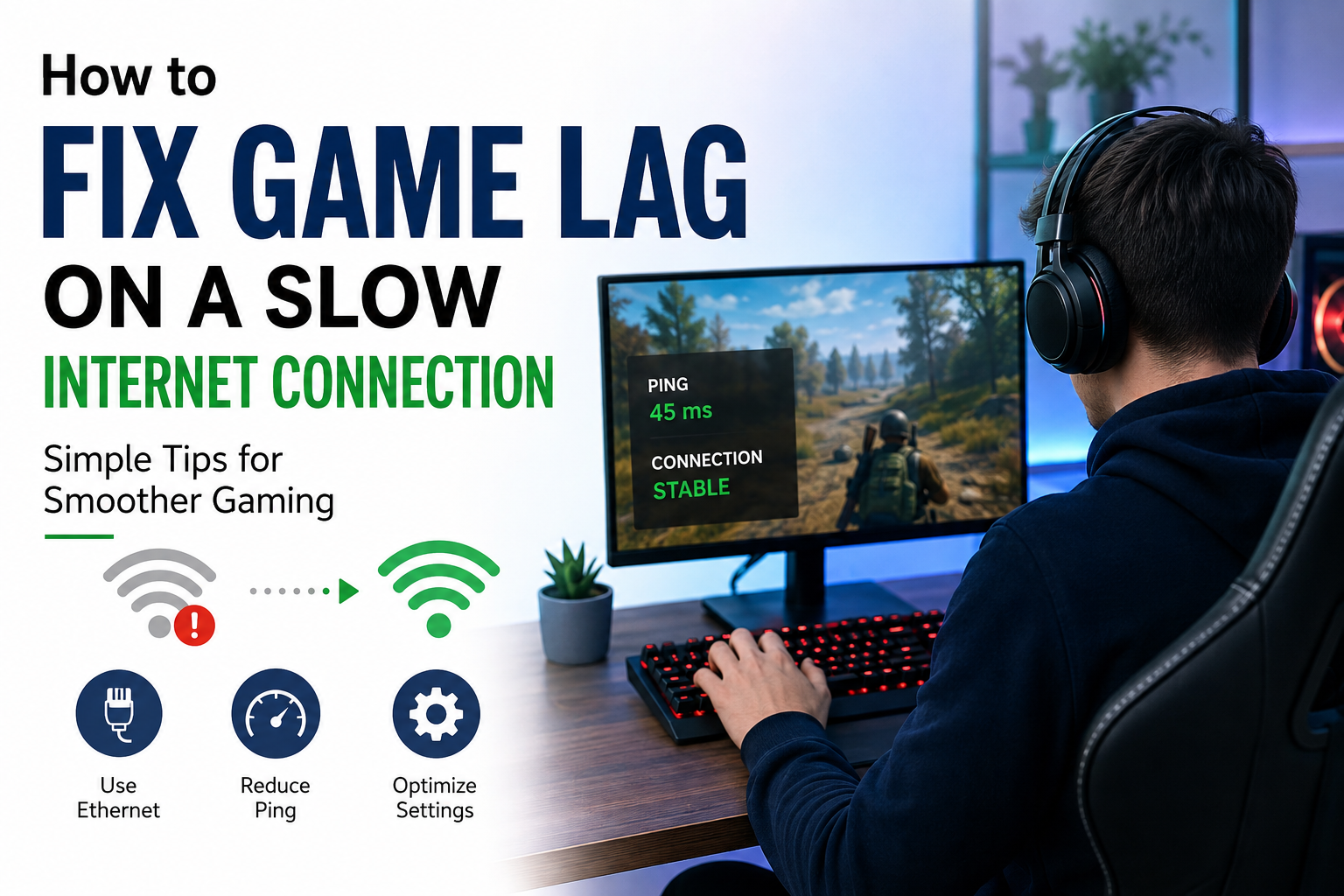
Gaming on a slow internet connection can be extremely frustrating. I know how annoying it feels when a game suddenly freezes, your character starts moving slowly, or your actions happen a few seconds after you press a button. You may have a good gaming PC or console, but if your internet connection is unstable, online gaming can still become difficult.
The good thing is that you do not always need to buy a new internet package immediately. In my experience, there are several simple things you can do to reduce game lag and make your online gaming experience more stable.
In this article, I will share the methods I would personally try when gaming on a slow or unstable internet connection.
First Understand What Game Lag Really Means
Before fixing lag, I think it is important to understand what is actually causing the problem. Game lag is not always related to slow internet speed.
When I experience problems in an online game, I usually look at three things: ping, packet loss, and connection stability.
Ping is the time your data takes to travel between your device and the game server. A lower ping usually means a faster response.
Packet loss happens when some data does not reach the server or your device correctly. Even if your internet speed looks good, packet loss can cause characters to teleport, freeze, or suddenly move backward.
Connection stability is also important. A connection that constantly changes between fast and slow can cause more problems than a consistently slow connection.
Check Your Internet Speed
The first thing I recommend doing is checking your internet connection. You can use any reliable internet speed testing service to check your download speed, upload speed, and ping.
I would test the connection while nobody else is using the internet heavily. Then I would test it again when other people are watching videos, downloading files, or using social media.
If the speed becomes extremely low when other devices are connected, your home network may be overloaded.
Remember that gaming usually does not require extremely high download speeds. A stable connection with reasonable ping can be more important than having a very high download speed.
Stop Background Downloads
One of the easiest solutions I have found is closing unnecessary applications that are using the internet.
Windows updates, cloud storage applications, game launchers, browser tabs, video streaming services, and other programs can consume bandwidth in the background.
Before starting an online game, I usually check what is running on my computer. If something is downloading a large file, I pause it until I finish playing.
You should also check other devices connected to your WiFi. Someone watching a high quality video or downloading a large game can affect your gaming connection.
Use an Ethernet Cable
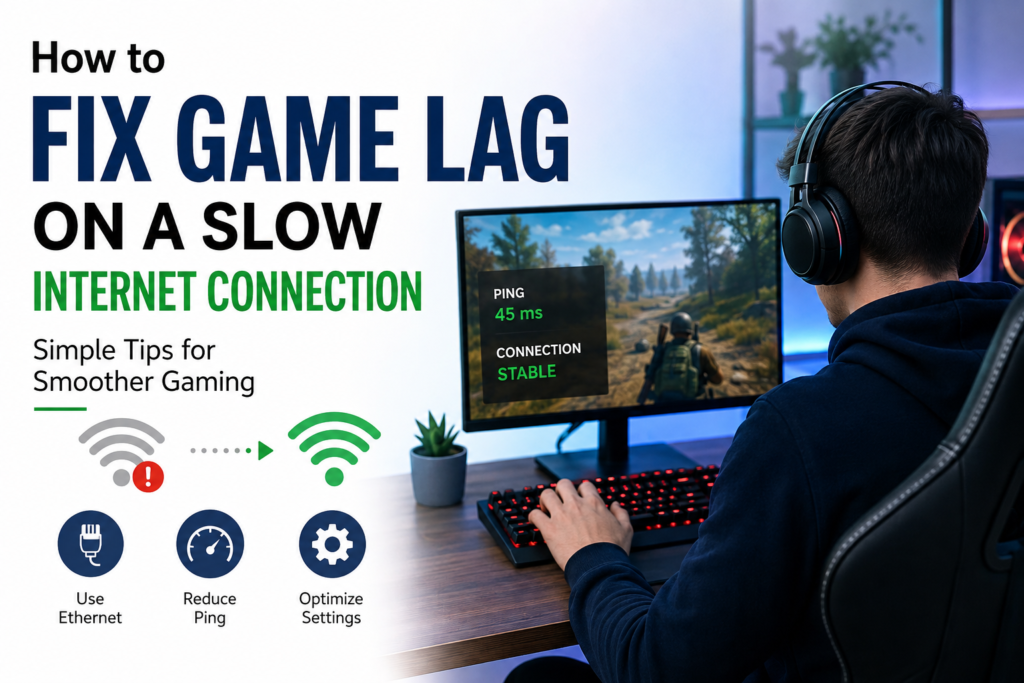
If you are using WiFi and experiencing frequent lag, connecting your gaming device directly to the router with an Ethernet cable can make a noticeable difference.
I personally prefer a wired connection whenever possible because it is generally more stable than WiFi.
WiFi signals can become weaker because of walls, furniture, distance, and interference from other wireless devices. An Ethernet connection avoids many of these problems.
If your gaming setup is close enough to your router, I would definitely recommend trying an Ethernet cable before making other expensive changes.
Move Closer to Your WiFi Router
If you cannot use an Ethernet cable, try moving your gaming device closer to the router.
I have noticed that the quality of a WiFi connection can change significantly depending on where the device is located. A room far away from the router may have a much weaker signal than the room where the router is installed.
Try placing your router in a central and open location. Avoid keeping it inside a cabinet or behind large objects.
If your house is large, a mesh WiFi system or properly placed extender may also help improve coverage.
Restart Your Router
This sounds like a very basic solution, but restarting the router can sometimes fix temporary connection problems.
When my internet starts behaving strangely, I usually turn off the router, wait for a short time, and then turn it back on.
This can help refresh the connection and may resolve temporary network issues.
However, if your internet connection becomes slow every day, restarting the router is not a permanent solution. In that situation, I would contact the internet provider and explain the problem.
Choose the Closest Game Server
Many online games allow players to select a server or region.
If the game gives you this option, choose a server that is geographically closer to you. A server that is far away can result in higher ping because your data has to travel a longer distance.
Sometimes the game automatically selects a server, but the automatic selection is not always perfect.
I recommend checking the available server regions and testing which one provides the lowest and most stable ping.
Reduce Other Internet Usage
When playing online games on a slow connection, I try to keep other internet activity to a minimum.
For example, I avoid streaming high resolution videos while gaming. I also ask other people using the same connection to avoid large downloads when possible.
If several people are using the same internet connection at the same time, available bandwidth is divided between devices.
This is especially noticeable on slower connections.
You do not necessarily need to disconnect every device in your home. The main goal is to reduce heavy internet activity while you are playing.
Check for Packet Loss
Sometimes the problem is not your download speed. You may have packet loss.
Packet loss can cause strange problems in online games. Your character might suddenly stop moving, enemies may appear in unexpected positions, or the game may disconnect you.
If you suspect packet loss, you can use network diagnostic tools to test your connection.
If packet loss continues even when your device is connected directly to the router, the issue could be related to your router, internet provider, or network infrastructure.
In that situation, contacting your ISP can be more useful than changing game settings.
Update Your Network Drivers
If you are playing on a Windows PC, outdated network drivers can sometimes create connection problems.
I recommend checking your network adapter drivers and installing updates from a trusted source.
You should also keep your operating system updated. However, I would avoid downloading random drivers from unknown websites because they can create additional security problems.
Keeping your networking hardware and software updated can help maintain a stable connection.
Restart the Game and Your Device
Sometimes the simplest solution works.
If a game suddenly starts lagging, I usually restart the game first. If the problem continues, I restart the computer or console.
Temporary software problems can sometimes affect network performance.
Restarting your device also closes background applications that may have been consuming resources or bandwidth.
Lower Game Settings When Necessary
It is important to remember that not every type of lag is caused by the internet.
If your game is stuttering even when your ping is normal, your computer or console may be struggling to render the game.
In that situation, lowering graphics settings can help.
Try reducing settings such as texture quality, shadows, reflections, and other demanding graphical features.
If your frame rate becomes more stable, the problem may have been performance related rather than internet related.
Avoid Using a VPN While Gaming
A VPN can sometimes increase your ping because your internet traffic has to travel through an additional server.
If you are using a VPN and suddenly notice higher ping, try disconnecting it and testing the game again.
There are situations where a VPN can help with specific routing problems, but I would not automatically use one as a solution for normal gaming lag.
For most players, a direct connection to the game server is preferable when the connection is already stable.
Contact Your Internet Provider
If you have tried everything and your connection is still unstable, I would contact your internet provider.
Explain exactly what is happening. Instead of simply saying that the internet is slow, mention that you are experiencing high ping, connection drops, or packet loss while gaming.
Your provider may be able to check your line and identify problems.
Sometimes the issue is outside your home network, so there is nothing you can fix through game settings.
My Final Thoughts
Fixing game lag on a slow internet connection does not always require expensive equipment or a faster internet package.
In my experience, I would first check my ping and connection stability, stop background downloads, move closer to the router, and test an Ethernet connection. I would also make sure that other devices are not consuming most of the available bandwidth.
If the problem continues, I would check for packet loss and contact my internet provider.
The most important thing is to identify what type of lag you are experiencing. High ping, packet loss, weak WiFi, and low FPS can all feel similar while gaming, but they require different solutions.
A slow internet connection can certainly make online gaming difficult, but with a few simple adjustments, you may be able to make your connection much more stable without spending a lot of money.