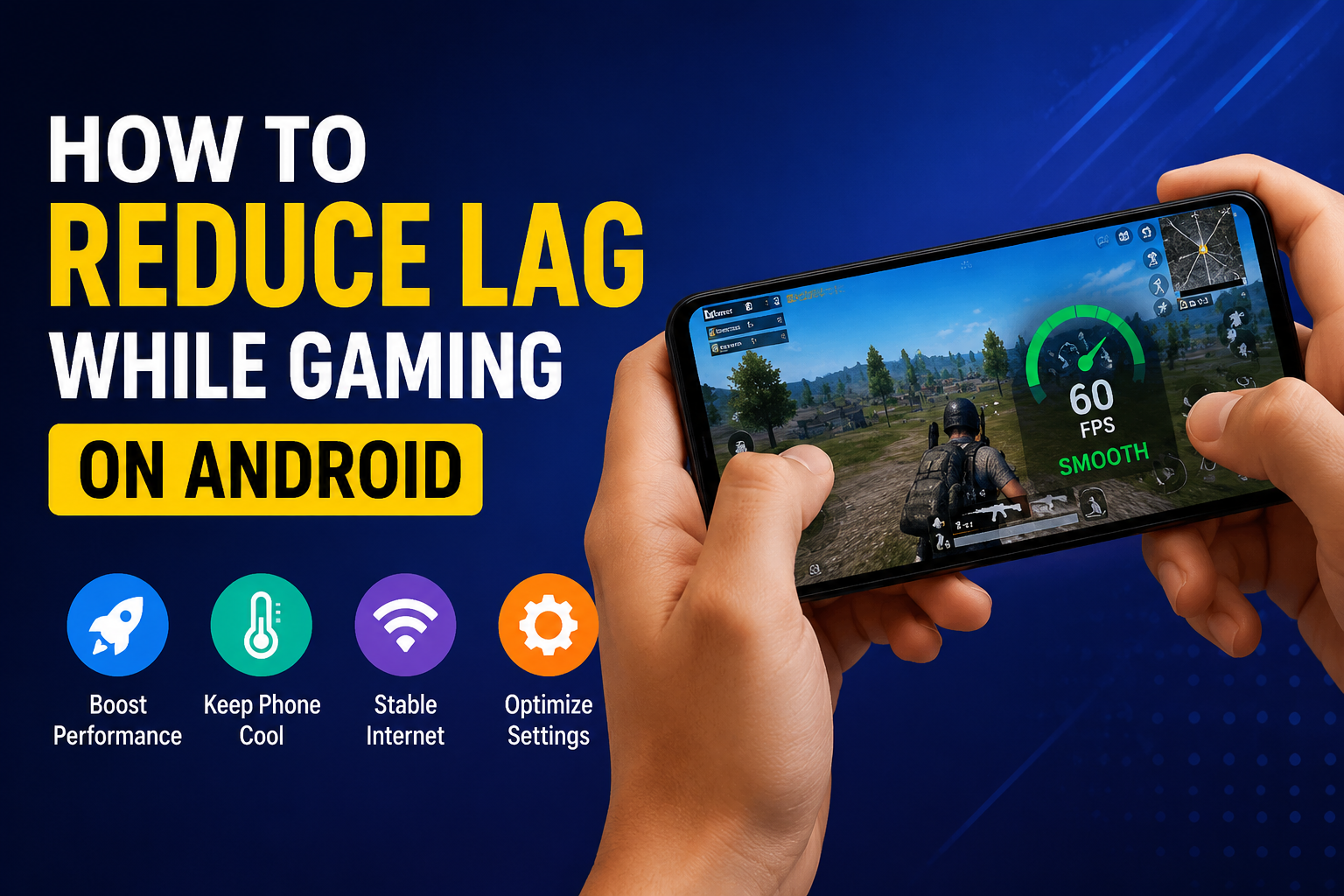
Gaming on Android can be a lot of fun, especially when I have a powerful game installed and everything is running smoothly. But there is nothing more frustrating than pressing an important button and watching the game respond a second later. Lag can turn an enjoyable gaming session into a stressful experience.
I have faced this problem many times, and I learned that lag is not always caused by having an old phone. Sometimes the problem is related to background apps, poor internet connection, overheating, low storage, or incorrect game settings. In many cases, I can make a noticeable difference simply by changing a few settings and improving the way I use my phone.
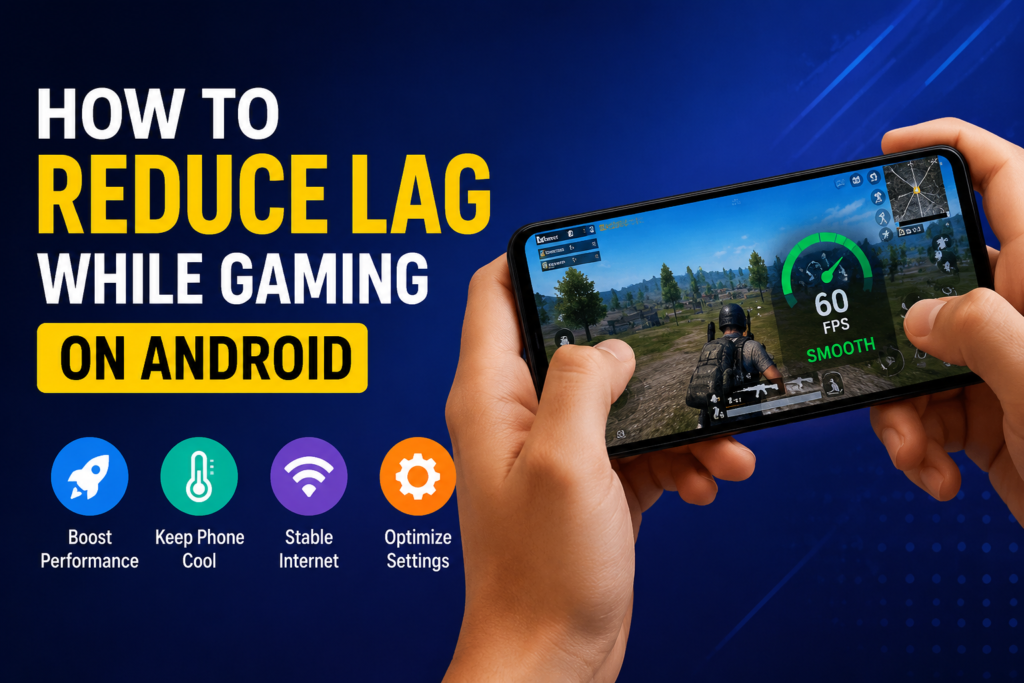
In this guide, I will share the methods I personally find useful for reducing lag while gaming on Android. These tips do not require expensive equipment, and most of them can be tried within a few minutes.
Check Your Internet Connection
The first thing I check when an online game starts lagging is my internet connection. A slow or unstable connection can make a game feel extremely delayed even when the phone itself is performing well.
I usually run a quick internet speed test before blaming my phone. If the connection is unstable, I try switching between WiFi and mobile data to see which one performs better.
I also prefer playing closer to my WiFi router because walls and distance can weaken the signal. If several people are using the same connection for streaming videos, downloading files, or other activities, gaming performance can suffer.
For online games, a stable connection is often more important than having extremely high download speeds. Reducing network congestion can make the gaming experience feel much smoother.
Close Unnecessary Background Apps
One of the simplest things I do before starting a demanding game is close apps that I am not using. Social media apps, browsers, video applications, and other programs can continue using memory and processor resources in the background.
Android is generally good at managing memory automatically, but demanding games can still benefit when unnecessary applications are closed.
I usually open the recent apps screen and remove programs that I do not need. I do not recommend constantly forcing every background process to stop because Android manages many of these processes efficiently on its own. I simply close the applications that are obviously using a lot of resources.
This small habit can help free memory and reduce unnecessary activity while gaming.
Keep Your Android Phone Cool
Heat is another major reason why I experience performance problems during long gaming sessions. When a phone becomes too hot, it may reduce processor performance to control the temperature.
I have noticed that games often run well at the beginning of a session but start becoming less responsive after playing for a long time. This can happen because the phone is heating up.
I avoid playing demanding games while my phone is charging whenever possible. I also remove thick phone cases temporarily if the device becomes unusually warm.
Playing in a cool room can also help. I never place my phone under something that blocks airflow because that can trap heat.
Keeping the phone at a reasonable temperature is one of the easiest ways to maintain stable performance.
Free Up Storage Space
Low storage can also affect the overall experience of using an Android phone. When my storage becomes almost completely full, I notice that the phone can feel slower in general.
I regularly check my storage and remove files I no longer need. Large videos, duplicate photos, old downloads, unused applications, and unnecessary files can take up a surprising amount of space.
I recommend keeping some free storage available instead of filling the phone completely. You do not necessarily need to delete everything, but giving Android enough room to work can help maintain better overall performance.
I also check the games installed on my phone. If I have not played a particular game for months, I uninstall it and recover the space.
Lower the Game Graphics
If a game supports graphics settings, this is one of the first things I adjust when experiencing lag.
High graphics can look beautiful, but they also require more processing power. On a mid range or older Android phone, maximum graphics settings may simply be too demanding.
I usually start by lowering settings such as texture quality, shadows, reflections, and visual effects. I then test the game again.
Sometimes reducing graphics quality slightly makes a huge difference in smoothness. Personally, I would rather play with medium graphics at a stable frame rate than use maximum graphics and deal with constant stuttering.
Increase the Frame Rate When Possible
Some games allow me to choose between different frame rate options. If my phone can handle a higher frame rate, I prefer using it because movement can feel much smoother.
However, I do not automatically choose the highest option. A high frame rate can increase battery usage and heat generation.
If the game becomes unstable at a higher frame rate, I switch to a lower setting that the phone can maintain consistently. A stable frame rate is usually better than constantly jumping between high and low performance.
Finding the right balance between graphics quality and frame rate can make a major difference.
Turn Off Battery Saving Mode
Battery saving modes are useful when I want my battery to last longer, but I usually avoid them while playing demanding games.
Depending on the Android phone, battery saving features may limit processor performance or restrict background activity. This can sometimes reduce gaming performance.
If my battery is sufficiently charged, I prefer turning off battery saving mode while gaming. After finishing my gaming session, I can enable it again if I need to conserve battery.
Some phones also include a dedicated gaming mode that prioritizes performance. If my device has this feature, I usually test it because it can provide useful gaming controls and performance options.
Restart Your Phone
This sounds simple, but restarting my phone can sometimes solve temporary performance problems.
After several days of normal use, different applications and services may have been running in the background. A restart gives the phone a fresh session and can clear temporary issues.
If I suddenly notice that games are performing worse than usual, I restart the device before trying complicated solutions.
It only takes a minute or two, so I consider it an easy troubleshooting step.
Update Android and Your Games
I also make sure that my Android system and games are updated. Developers regularly release updates that can improve performance, fix bugs, and resolve compatibility problems.
An outdated game may contain an issue that has already been fixed in a newer version.
I check the Google Play Store for game updates and also install system updates when they are available and appropriate for my device.
I do not install random performance boosting applications just because they promise dramatic improvements. I prefer official updates because they are generally safer and more reliable.
Disable Unnecessary Visual Effects
Some Android phones include animations and visual effects that make the interface look attractive. These effects normally do not cause serious gaming problems, but on weaker devices, reducing unnecessary animations can make the phone feel more responsive.
If my phone is struggling with performance, I sometimes reduce animation effects through the appropriate Android settings.
I do not expect this to magically double gaming performance. Instead, I see it as one small adjustment that can contribute to a more responsive overall experience.
Avoid Playing While Charging
Playing demanding games while charging can create a lot of heat. The processor is already working hard, and the battery is receiving power at the same time.
I personally try to charge my phone before a long gaming session rather than playing for hours while it is connected to a charger.
If I have to play while charging, I make sure the phone has enough ventilation and avoid using it in a hot environment.
Reducing heat is important because excessive temperature can eventually lead to performance throttling.
Use the Right Network for Online Games
For competitive online games, I pay close attention to network stability. If WiFi is unstable, I test mobile data. If mobile data is inconsistent, I return to WiFi.
I also avoid downloading large files or streaming high quality videos on the same connection while gaming.
If possible, I ask other people using the connection to avoid heavy downloads during important gaming sessions. This can reduce network congestion and help maintain a more consistent connection.
Remove Unnecessary Applications
I periodically review the applications installed on my phone. Some applications may run services in the background even though I rarely use them.
Removing applications that I no longer need can free storage and reduce unnecessary activity.
I also avoid installing unknown applications that promise to make games faster. Some of these applications may display advertisements, consume resources, or provide little real benefit.
I prefer keeping my phone clean and installing only applications that I actually use.
Clear Game Cache When Necessary
Sometimes a game’s temporary files can become problematic. If a particular game starts behaving strangely, I may clear its cache through Android’s app settings.
Clearing cache is different from clearing app data. Cache files are temporary files, while clearing app data can remove local settings and other information depending on the application.
Because of this, I check what each option does before selecting it. I usually start with clearing cache because it is a less disruptive step.
Keep Your Phone Updated and Maintained
Good phone maintenance can make a noticeable difference over time. I try not to let my device become overloaded with unnecessary files and applications.
I keep enough storage available, update important software, monitor temperature, and restart the phone occasionally.
I also pay attention to battery health. If a battery becomes heavily degraded, the phone may not perform as well as it did when it was new.
These small habits are more useful to me than relying on one so called gaming booster application.
Final Thoughts
Reducing lag while gaming on Android does not always require buying a new phone. In my experience, many gaming problems can be improved by making simple changes.
I start by checking my internet connection, closing unnecessary apps, lowering demanding graphics settings, keeping the phone cool, and freeing up storage. I also make sure Android and my games are updated and avoid using battery saving mode during demanding gaming sessions.
Most importantly, I try to find settings that match my phone instead of copying someone else’s configuration. Every Android device has different hardware, so what works perfectly on one phone may not work as well on another.
For me, smooth and consistent gameplay is more important than maximum graphics. Once I find the right balance between visual quality, frame rate, temperature, and network stability, gaming becomes much more enjoyable.
If your Android phone is experiencing lag, I recommend trying these changes one at a time. That way, you can identify which adjustment makes the biggest difference for your particular device.