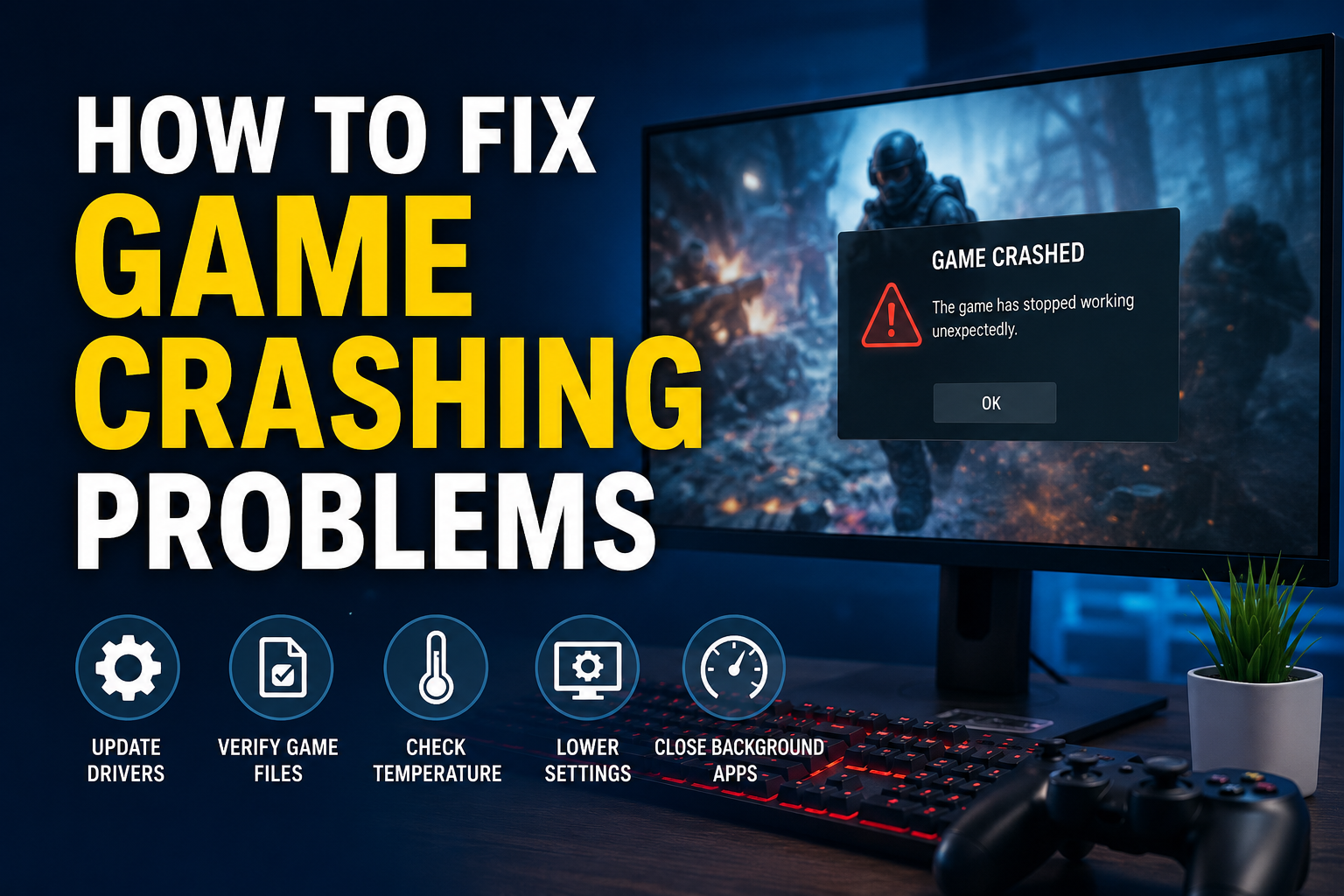
Game crashes are one of the most frustrating problems I have experienced while gaming. You can be enjoying a match, exploring a new area, or finally reaching an important part of the game, and suddenly the game closes without warning. Sometimes the screen freezes, sometimes the game returns to the desktop, and in some cases the entire computer may restart.
The good thing is that most game crashing problems can be fixed if you find the actual cause. In my experience, crashes are usually related to outdated drivers, damaged game files, overheating, insufficient system resources, background applications, or incorrect game settings.
In this article, I will explain the methods I personally recommend for fixing game crashing problems on a Windows PC. You do not need to try everything at once. Start with the simple solutions and move toward the more advanced ones if the problem continues.
Restart Your Computer First
Before changing complicated settings, I always recommend restarting the computer. It sounds simple, but it can solve many temporary problems.
When you play games for a long time, different applications and services keep running in the background. RAM can become occupied, temporary processes can create conflicts, and some programs may stop responding correctly.
Restarting your computer gives Windows a fresh start and clears many temporary issues. After restarting, open the game again and check whether it still crashes.
If the game works normally after restarting but crashes again later, the problem may be related to memory usage, overheating, background applications, or another software conflict.
Check Your Computer Temperature
Overheating is another common reason why games crash. Modern games put a lot of pressure on the CPU and GPU, especially when you use high graphics settings.
I recommend checking your CPU and GPU temperatures while playing. If your computer becomes extremely hot, the hardware may reduce its performance or become unstable.
Make sure the air vents are not blocked. If you use a desktop computer, clean dust from the fans and internal components. Laptop users should avoid playing on soft surfaces such as beds because they can block ventilation.
Good airflow can make a noticeable difference. If the temperatures remain high even after cleaning, you may need to check the cooling system, fans, or thermal paste.
Update Your Graphics Driver
One of the first things I check when a game starts crashing is the graphics driver.
Your graphics card needs the correct driver to communicate properly with Windows and your games. New game releases can sometimes require driver improvements, while older drivers may contain compatibility problems.
Visit the official website of your graphics card manufacturer and check for the latest driver available for your GPU. Install the appropriate version and restart your computer afterward.
If the crashes started immediately after a driver update, the new driver itself could be responsible. In that situation, going back to a previous stable driver may help.
Verify the Game Files
Game files can become corrupted for several reasons. A failed update, interrupted download, storage problem, or unexpected shutdown can damage files.
Many gaming platforms provide an option to verify or repair game files. This process checks the installed files and replaces missing or corrupted ones.
I find this particularly useful when a game crashes during startup. If the game suddenly stopped working after an update, verifying the files should be one of the first things you try.
The process may take some time depending on the size of the game, but it is much easier than reinstalling the entire game.
Lower Your Graphics Settings
Sometimes a game crashes because the current graphics settings are too demanding for the system.
If you are using ultra settings, very high textures, high resolution, or advanced visual effects, try lowering them temporarily.
I usually start by reducing texture quality, shadows, reflections, view distance, and other demanding settings. You can also reduce the resolution to see whether the game becomes stable.
If lowering the graphics settings fixes the crashes, your hardware may be struggling with the current configuration. You can then increase individual settings gradually until you find a balance between visual quality and stability.
Close Unnecessary Background Programs
Another thing I always check is the programs running in the background.
Applications such as browsers, recording software, chat applications, launchers, RGB utilities, and other tools can consume RAM and CPU resources. Some applications can also conflict with games.
Before launching a demanding game, close programs you do not need. This gives the game more system resources and can reduce the chance of crashing.
You should also be careful with unnecessary overlays. Some games do not work well with multiple overlays running at the same time.
Check Available RAM
Insufficient memory can also cause games to crash.
Modern games can use a significant amount of RAM, especially open world games with large maps and detailed environments. If you have a game running together with a browser containing many tabs and several other applications, your available memory can become very low.
Open Windows Task Manager and check memory usage while the game is running. If memory usage is consistently close to the maximum, close unnecessary applications.
If your computer regularly runs out of RAM, upgrading the memory may provide a more permanent solution.
Make Sure You Have Enough Storage Space
I have noticed that people often forget to check available storage space when troubleshooting game problems.
Windows needs free storage for temporary files, updates, caching, and other operations. Games also need additional space when downloading patches or creating temporary data.
If your system drive is almost completely full, try removing unnecessary files and applications. Keep a reasonable amount of free space available.
Also check the drive where the game is installed. A drive with very little free space can sometimes cause installation, updating, or performance problems.
Disable Overclocking Temporarily
Overclocking can improve performance, but it can also create instability.
If you have overclocked your CPU, GPU, or RAM, try returning the components to their default settings. Then test the game again.
A system can appear stable during normal tasks but crash under heavy gaming loads. Games are excellent at exposing instability because they can place sustained pressure on multiple components.
If the game becomes stable after disabling the overclock, you have probably found the source of the problem.
Update Windows
Keeping Windows updated can also help with game stability.
Operating system updates often include bug fixes, compatibility improvements, and security updates. If your version of Windows is significantly outdated, some games may not behave correctly.
Open Windows Update and check whether updates are available. After installing important updates, restart your computer and test the game again.
However, if the crashes started immediately after a major Windows update, you should also consider whether the update introduced a compatibility issue.
Check for Malware
Malware is not the most common reason for game crashes, but it should not be ignored.
Some unwanted programs consume CPU, RAM, or storage resources. Others can interfere with normal Windows processes.
Run a security scan using a trusted security solution. Remove suspicious software and avoid downloading unknown game modifications or unofficial programs.
I especially recommend being careful with random executable files that promise game optimization, free cheats, or performance improvements. They can create more problems than they solve.
Run the Game as Administrator
In some situations, a game may have problems accessing certain files or folders.
Running the game with administrator privileges can sometimes resolve permission related issues. To test this, right click the game’s executable file and look for the option to run it as administrator.
I would not treat this as the first solution, but it is worth testing when the game crashes during startup or when it cannot properly save settings.
Disable Third Party Overlays
Overlays can be useful because they allow you to access chats, recording tools, performance information, or other features while gaming.
However, overlays can occasionally interfere with games.
If you are experiencing random crashes, temporarily disable unnecessary overlays from gaming platforms, graphics software, communication applications, and recording tools.
After disabling them, launch the game and see whether the crashing problem has disappeared.
Reinstall the Game
If nothing else works, reinstalling the game can be worth trying.
Before uninstalling, make sure your important save files are backed up if they are not synchronized with cloud storage. Then uninstall the game completely and install it again.
A clean installation can fix problems caused by damaged files, incorrect configurations, or failed updates.
I usually keep this method near the end because downloading a large modern game can take a lot of time.
Check Your Hardware
If multiple games crash, the problem may not be related to one specific game.
For example, unstable RAM, a failing storage drive, overheating hardware, or a problematic graphics card can cause crashes across different games.
Pay attention to patterns. If only one game crashes, the problem is more likely to be related to that game or its settings. If almost every demanding game crashes, I would investigate the hardware.
You can run memory and storage diagnostics and monitor your temperatures during gaming. If you notice unusual noises, graphical artifacts, sudden shutdowns, or frequent system restarts, professional hardware testing may be necessary.
Final Thoughts
Game crashing problems can be extremely annoying, but I would not immediately assume that your computer needs expensive upgrades. In many cases, the solution is something simple such as updating a driver, repairing game files, lowering graphics settings, closing background programs, or fixing overheating.
My advice is to troubleshoot one thing at a time. Start with restarting the computer, checking temperatures, updating graphics drivers, and verifying game files. Then move toward graphics settings, background applications, Windows updates, and hardware checks.
The most important thing is to identify when the crashing started and whether it happens with one game or several games. That information can make troubleshooting much easier.
With a little patience, most game crashing problems can be solved without replacing your entire computer. Once you find the real cause, you can get back to gaming with a much more stable and enjoyable experience.