
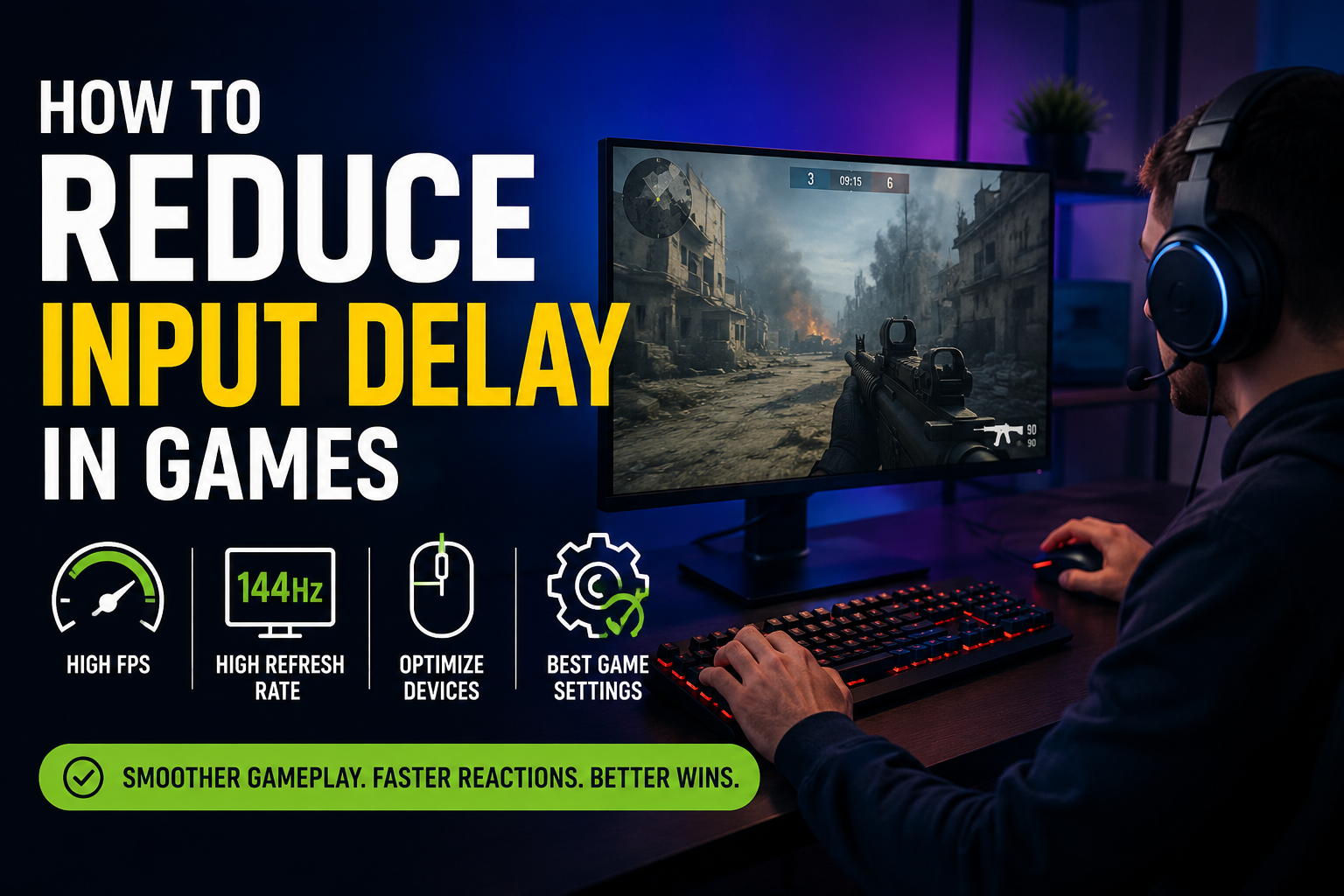
When I play games, one of the most frustrating problems I can experience is input delay. I can press a button, move my mouse, or use my controller, but the action does not happen immediately on the screen. Even a small delay can make a big difference, especially in competitive games where quick reactions matter.
Input delay is sometimes confused with high ping or low FPS, but these are not exactly the same thing. Input delay is the time between my physical action and the moment I see that action happen on the screen. It can come from my mouse, keyboard, controller, display, game settings, computer hardware, or even software running in the background.
The good thing is that I can often reduce input delay without buying a completely new gaming PC. In this article, I will explain the methods I personally find useful for reducing input delay and making games feel more responsive.
What Is Input Delay in Gaming?
Input delay is the small amount of time between an input and the corresponding action appearing on my screen. For example, if I move my mouse to aim at an enemy, I expect the crosshair to move instantly. If there is noticeable delay, aiming can feel slow and uncomfortable.
The delay may come from several different parts of the gaming setup. My input device needs to send the signal to the computer. The game needs to process that signal. The graphics card needs to render the new frame, and finally, the monitor needs to display it.
Each part can add a small amount of delay. When these delays combine, I can notice a significant difference.
Keep My FPS High and Stable
One of the first things I check when I experience input delay is my FPS. A low or unstable frame rate can make controls feel less responsive.
For example, if my game is running at 40 FPS, the screen receives fewer updates compared with a game running at 120 FPS. Higher FPS generally allows the game to respond more frequently to my inputs.
I usually lower graphics settings if my FPS is struggling. Settings such as shadows, reflections, ambient effects, view distance, and other demanding options can have a big impact on performance.
I do not always need to play on the highest graphics settings. If reducing visual quality gives me a much smoother and more responsive experience, I consider it a worthwhile trade.
Use a High Refresh Rate Monitor
My monitor also plays an important role in how responsive a game feels. A standard 60Hz monitor refreshes the image 60 times per second. A 120Hz, 144Hz, 165Hz, or higher refresh rate monitor can show updates much more frequently.
If my computer can produce enough FPS, using a higher refresh rate can make mouse movement and gameplay feel smoother.
After connecting a high refresh rate monitor, I also make sure Windows is actually using the correct refresh rate. Sometimes the monitor supports a high refresh rate but the operating system is still set to 60Hz.
I check my display settings and select the highest refresh rate that my monitor and setup support properly.
Turn On Game Mode When Appropriate
Many modern games include settings designed to reduce latency. Some games have options with names related to low latency, reflex, or input responsiveness.
If my game provides a low latency feature, I normally test it because it can reduce the time between my input and the displayed result.
Graphics card software can also provide latency related features. The exact options depend on the graphics card and game, so I avoid changing multiple settings randomly. I prefer testing one setting at a time and checking whether the game actually feels better.
Use a Wired Mouse and Keyboard
Wireless gaming devices can be excellent, but when I am troubleshooting input delay, I often test my mouse and keyboard with a wired connection.
A wired device removes one possible source of communication delay and also helps me identify whether the wireless connection is causing a problem.
Modern wireless gaming mice can be extremely responsive, so I would not say that every wireless device causes noticeable delay. However, if my wireless mouse has connection problems, low battery, interference, or an unreliable receiver, switching temporarily to a cable can help identify the issue.
Check the Mouse Polling Rate
The polling rate determines how frequently my mouse reports its position to the computer. Gaming mice commonly offer polling rates such as 500Hz, 1000Hz, and sometimes higher.
A higher polling rate can provide more frequent updates, although the practical difference depends on my system and game.
I normally use a reasonable polling rate that my computer can handle consistently. If increasing the polling rate causes unusual performance problems or CPU usage, I would rather use a slightly lower setting and maintain stable performance.
Avoid Using Unnecessary Background Programs
Background applications can consume CPU, RAM, disk activity, and network resources. When I am gaming, I try to close programs that I do not need.
For example, I may close unnecessary browser tabs, file synchronization programs, launchers, recording software, or other applications that are running in the background.
I also check the Task Manager if I notice sudden performance problems. If a background application is using a large amount of CPU or memory, it can affect the overall gaming experience.
I do not recommend blindly disabling important Windows processes. I only close applications that I recognize and do not need while gaming.
Update Graphics Drivers
Outdated or corrupted graphics drivers can sometimes cause performance problems. I regularly check for graphics driver updates from my graphics card manufacturer.
A driver update may improve game performance, fix bugs, or improve compatibility with newer games.
However, I do not update drivers simply because a new version exists and immediately assume everything will be better. If my current driver is stable, I still check the release notes and make sure the update is relevant to my games.
Enable the Correct Fullscreen Mode
The display mode I use can affect how a game feels. Many games offer fullscreen, borderless fullscreen, and windowed modes.
When I am trying to minimize input delay, I usually test exclusive fullscreen if the game supports it properly. In some situations, borderless mode can work very well too, especially on newer versions of Windows.
The important thing is to test both modes instead of assuming one will always be faster on every computer.
Disable Unnecessary Visual Effects
Some visual effects can make a game look better but may make the experience feel less responsive.
Motion blur is one setting I often disable because I prefer a clear image during fast movement. I may also reduce unnecessary post processing effects if they affect performance.
My goal is not always to make the game look as beautiful as possible. When playing competitive games, I prefer settings that give me clear visuals, stable FPS, and responsive controls.
Check V Sync Settings
V Sync can help reduce screen tearing, but depending on the game and setup, it can also affect perceived input responsiveness.
If I am specifically troubleshooting input delay, I test the game with V Sync on and off to see which option feels better.
Some newer technologies can provide smoother gameplay while managing latency differently, so I look at the options available for my specific monitor and graphics card.
There is no single setting that works perfectly for everyone. My monitor refresh rate, FPS, graphics card, and game engine all matter.
Use a Gaming Monitor With Low Response Time
Input delay is not only about FPS. The monitor itself also has a response time.
A monitor with a slower pixel response can create visible ghosting or smearing during movement. This can make the game feel less clear, even if my input is being processed quickly.
When choosing a gaming monitor, I look at refresh rate, response performance, and overall reviews rather than focusing on one specification.
I also make sure that any gaming mode or response time setting on my monitor is configured correctly.
Check My Controller Connection
If I use a controller, I also check its connection. A wired controller is a simple way to test whether wireless connectivity is contributing to the problem.
I make sure the controller has enough battery and that its firmware is updated when necessary.
If the controller feels delayed only in one particular game, I also check the game’s controller settings rather than assuming the controller itself is defective.
Keep My Computer Cool
Heat can also affect gaming performance. If my CPU or GPU becomes too hot, it may reduce its speed to protect the hardware.
When this happens, I can experience FPS drops and an inconsistent gaming experience, which can feel like input delay.
I keep my computer vents clean and make sure there is enough airflow around the system. I also monitor temperatures when I notice performance suddenly becoming worse.
A clean and properly cooled computer can provide more consistent performance during long gaming sessions.
Test One Change at a Time
One mistake I try to avoid is changing twenty settings at once. If I do that, I cannot know which change actually helped.
Instead, I change one setting and test the game. For example, I may first lower a demanding graphics setting. Then I test FPS and responsiveness. After that, I may change another setting.
This approach takes a little more time, but it makes troubleshooting much easier.
Do Not Confuse Input Delay With Ping
It is also important for me to understand the difference between input delay and network latency.
If my character responds slowly to my mouse or keyboard even when playing offline, the problem is probably related to the PC, game, display, or input device.
If my controls feel responsive but other players teleport, actions take time to register on the server, or the game shows network warnings, then high ping or network problems may be responsible.
Understanding the difference saves me from changing the wrong settings.
Final Thoughts
Reducing input delay is not always about buying expensive gaming equipment. In my experience, small improvements across the entire setup can make games feel much more responsive.
I start by making sure my FPS is stable, my monitor is using its proper refresh rate, and unnecessary background applications are closed. Then I check game latency settings, graphics settings, drivers, input devices, and display options.
I also pay attention to cooling and hardware performance because unstable performance can make input feel inconsistent.
Most importantly, I test changes one at a time. Every gaming setup is different, so a setting that works perfectly for one person may not be ideal for another.
Once I find the right balance between graphics quality, FPS, refresh rate, and responsiveness, gaming becomes much more comfortable. For competitive games especially, reducing unnecessary input delay can help my movements feel quicker, my aiming feel more natural, and my controls feel closer to the way I actually play.
