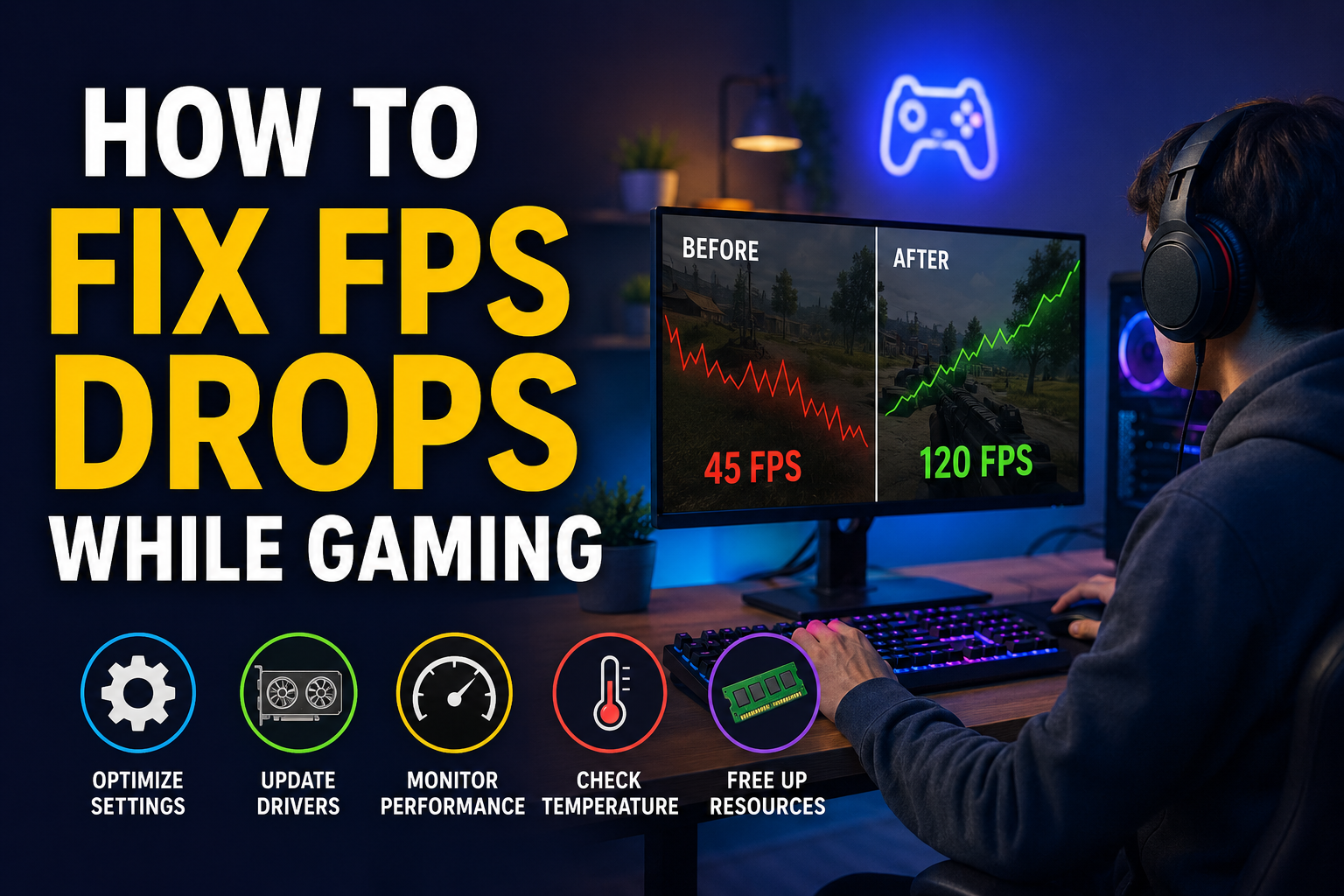
FPS drops are one of the most frustrating problems I face while gaming. A game can be running smoothly one minute and then suddenly become slow, choppy, or unresponsive. This can make even a good gaming session difficult, especially during competitive matches where every second matters.
FPS means frames per second. It basically tells us how many images our computer or gaming device can display every second. A higher and more stable FPS usually makes a game feel smoother. When FPS suddenly drops, the screen can stutter and controls may feel delayed.
In my experience, FPS drops are not always caused by weak hardware. Sometimes the problem comes from high temperatures, background applications, outdated drivers, incorrect game settings, or Windows settings. The good thing is that many of these problems can be fixed without buying new hardware.
In this article, I will explain the methods I personally consider useful for fixing FPS drops while gaming.
Check Your Computer Temperature
The first thing I recommend checking is temperature. Gaming puts a lot of pressure on the CPU and GPU, so they naturally become warmer. However, when temperatures become too high, the hardware may reduce its performance to protect itself.
This can cause sudden FPS drops after playing for some time.
I would check whether the computer is getting unusually hot when the FPS problem happens. If the fans are constantly running at maximum speed or the case feels extremely warm, temperature could be the reason.
Cleaning dust from the computer can help improve airflow. I also recommend making sure that the fans are working properly and that the computer is placed somewhere with enough ventilation.
For laptops, I would avoid using the device on a bed or soft surface because it can block air vents.
Update Your Graphics Driver
Graphics drivers play an important role in gaming performance. An outdated or damaged driver can sometimes cause performance problems, crashes, or unexpected FPS drops.
I recommend checking for the latest graphics driver for your GPU. Depending on your graphics card, you may use the official software provided by the manufacturer.
After installing a driver update, restarting the computer is a good idea. I would also test the same game again to see whether the performance has improved.
If the problem started immediately after a driver update, the new driver itself could be causing compatibility problems. In that situation, trying a different stable driver version may help.
Lower Your Game Graphics Settings
One of the easiest ways to improve FPS is to reduce demanding graphics settings.
I usually start by lowering settings that have a large impact on performance. Shadow quality, reflections, ambient occlusion, view distance, and volumetric effects can be particularly demanding in many games.
You do not necessarily need to set everything to the lowest possible level. Instead, I prefer finding a balance between visual quality and performance.
For example, lowering shadows from ultra to high may provide a noticeable performance improvement while still keeping the game looking good.
If your FPS improves after lowering graphics settings, your GPU may simply be struggling with the current graphical workload.
Reduce Resolution
Resolution has a major effect on GPU performance. Running a game at a higher resolution requires the graphics card to render more pixels.
If you are playing at 1440p or 4K and experiencing serious FPS drops, trying 1080p can make a significant difference.
I personally think resolution should be one of the settings to test when troubleshooting FPS problems. If lowering the resolution produces a large FPS improvement, it gives you a useful clue that the GPU is under heavy load.
Some games also include resolution scaling options that can improve performance while keeping the image reasonably sharp.
Close Unnecessary Background Programs
Sometimes the game is not the only thing using your computer’s resources.
Web browsers, video applications, cloud synchronization tools, launchers, recording software, and other programs can consume RAM, CPU power, GPU resources, or disk activity.
Before starting a demanding game, I prefer closing applications that I do not need.
Windows Task Manager can help identify programs using significant system resources. If I notice an unnecessary program consuming a large amount of CPU or memory, I close it before gaming.
However, I would avoid ending processes that I do not recognize because some Windows processes are important for the operating system.
Check Your RAM Usage
Insufficient RAM can also contribute to poor gaming performance.
Modern games can use a considerable amount of memory, especially open world games with large maps and detailed environments. If the game needs more memory than your computer comfortably provides, Windows may rely more heavily on storage, which can result in stuttering.
I recommend checking RAM usage while the game is running. If memory usage is consistently very high, closing background applications can help.
If the computer regularly struggles with memory even when unnecessary applications are closed, upgrading RAM may eventually be worth considering.
Make Sure the Game Uses the Correct GPU
This is especially important for laptops with integrated and dedicated graphics.
Some laptops have both an integrated GPU and a more powerful dedicated GPU. Occasionally, a game may run using the weaker graphics processor instead of the dedicated GPU.
If I notice unexpectedly low FPS on a gaming laptop, I would check which GPU the game is actually using.
Windows and graphics driver software usually provide options for selecting the preferred graphics processor for individual applications.
Using the dedicated GPU can make a major difference in demanding games.
Use the Right Power Mode
Power settings can also affect gaming performance.
On laptops, battery saving modes may reduce CPU and GPU performance to extend battery life. This is useful when doing normal tasks, but it may not be ideal for gaming.
When gaming while connected to power, I recommend using an appropriate performance oriented power mode if your system provides one.
I would also make sure the laptop charger is properly connected. Some gaming laptops reduce performance significantly when they are running only on battery.
Disable Unnecessary Overlays
Game overlays can be useful, but sometimes they can consume additional resources or create compatibility issues.
Examples include chat overlays, recording overlays, performance overlays, and launcher overlays.
If I am troubleshooting FPS drops, I like to temporarily disable unnecessary overlays and test the game again.
If the FPS becomes stable afterward, I can enable the overlays one by one to identify which one was causing the problem.
Check for Background Recording
Game recording features can sometimes affect performance, particularly on systems that are already close to their limits.
If you are not recording gameplay, I recommend checking whether Windows or another application is automatically capturing clips or recording in the background.
Disabling unnecessary recording features may reduce additional GPU, CPU, and storage activity.
This is especially worth checking if FPS drops happen during intense gameplay moments.
Check Your Storage Drive
Storage performance can also influence gaming, particularly in games that constantly load large amounts of data.
If your storage drive is almost completely full, I recommend freeing up some space. A nearly full drive can make general computer performance less comfortable.
For games installed on an older hard disk drive, upgrading to a solid state drive can also improve loading times and may reduce certain types of stuttering.
An SSD does not automatically increase FPS in every game, but it can improve how quickly game assets are loaded.
Scan for Malware
Unexpected background activity can sometimes be caused by unwanted software.
If your computer suddenly becomes slower across different applications and games, I recommend running a security scan using a trusted security solution.
Malware or unwanted programs may consume CPU, RAM, disk activity, or network resources.
Keeping Windows and your security software updated is also a good basic practice.
Watch Your CPU and GPU Usage
Monitoring hardware usage can help identify the real cause of an FPS problem.
If the GPU is consistently near full usage while gaming, the graphics card may be the performance limit. Lowering graphical settings can help in this situation.
If CPU usage is extremely high while GPU usage remains relatively low, the processor may be limiting performance.
This information is much more useful than simply guessing what is wrong.
Check the Game’s FPS Limit
Some games include an FPS limiter. If the limit is set incorrectly, you may think the game is performing badly when it is actually being restricted by the setting.
For example, if your monitor supports a high refresh rate but the game is limited to a low FPS value, adjusting the limit may provide a smoother experience.
I usually prefer setting a reasonable FPS target instead of forcing the computer to produce as many frames as possible.
A stable FPS can often feel better than a high FPS number that constantly jumps up and down.
Keep Windows Updated
Windows updates can include performance improvements, hardware compatibility fixes, and bug fixes.
I recommend keeping the operating system reasonably up to date. At the same time, if an FPS issue starts immediately after a major update, it is worth investigating whether the update introduced a compatibility problem.
Updating Windows, drivers, and the game itself can eliminate many software related causes.
Reinstall the Game if Necessary
If FPS drops happen only in one specific game while everything else runs normally, the game installation could be damaged or misconfigured.
Most modern game launchers provide a feature for verifying or repairing game files.
I would try this before completely reinstalling the game because it can save time and internet bandwidth.
If verification does not help, reinstalling the game may be worth trying as a final software troubleshooting step.
Final Thoughts
In my opinion, fixing FPS drops is mostly about finding the actual cause instead of changing random settings. I would first check temperatures, GPU and CPU usage, graphics drivers, background programs, and game settings.
If the problem is caused by high temperatures, improving cooling can help. If the GPU is struggling, lowering graphics quality or resolution may provide better performance. If background programs are consuming resources, closing them can make gaming smoother.
I also believe that stable performance is more important than simply chasing the highest FPS number. A game running at a consistent frame rate usually feels much better than one that jumps between high and low FPS.
Before spending money on new hardware, I recommend trying these basic solutions. In many cases, a few simple changes can make a noticeable difference and bring your gaming experience back to a smooth and enjoyable level.