When I play games on a Windows PC, I always look for simple ways to improve performance before thinking about expensive hardware upgrades. In my experience, Windows has many built in settings that can affect gaming performance. Some settings can help games run more smoothly, reduce unnecessary background activity, and make the overall gaming experience feel better.
I have found that changing a few Windows settings can make a noticeable difference, especially when using a mid range or older computer. These changes will not magically turn a basic PC into a powerful gaming machine, but they can help Windows use available resources more efficiently.
In this article, I will share the Windows settings that I personally consider useful for improving gaming performance.
Turn On Game Mode
The first setting I recommend checking is Game Mode. Windows includes this feature specifically to help when playing games.
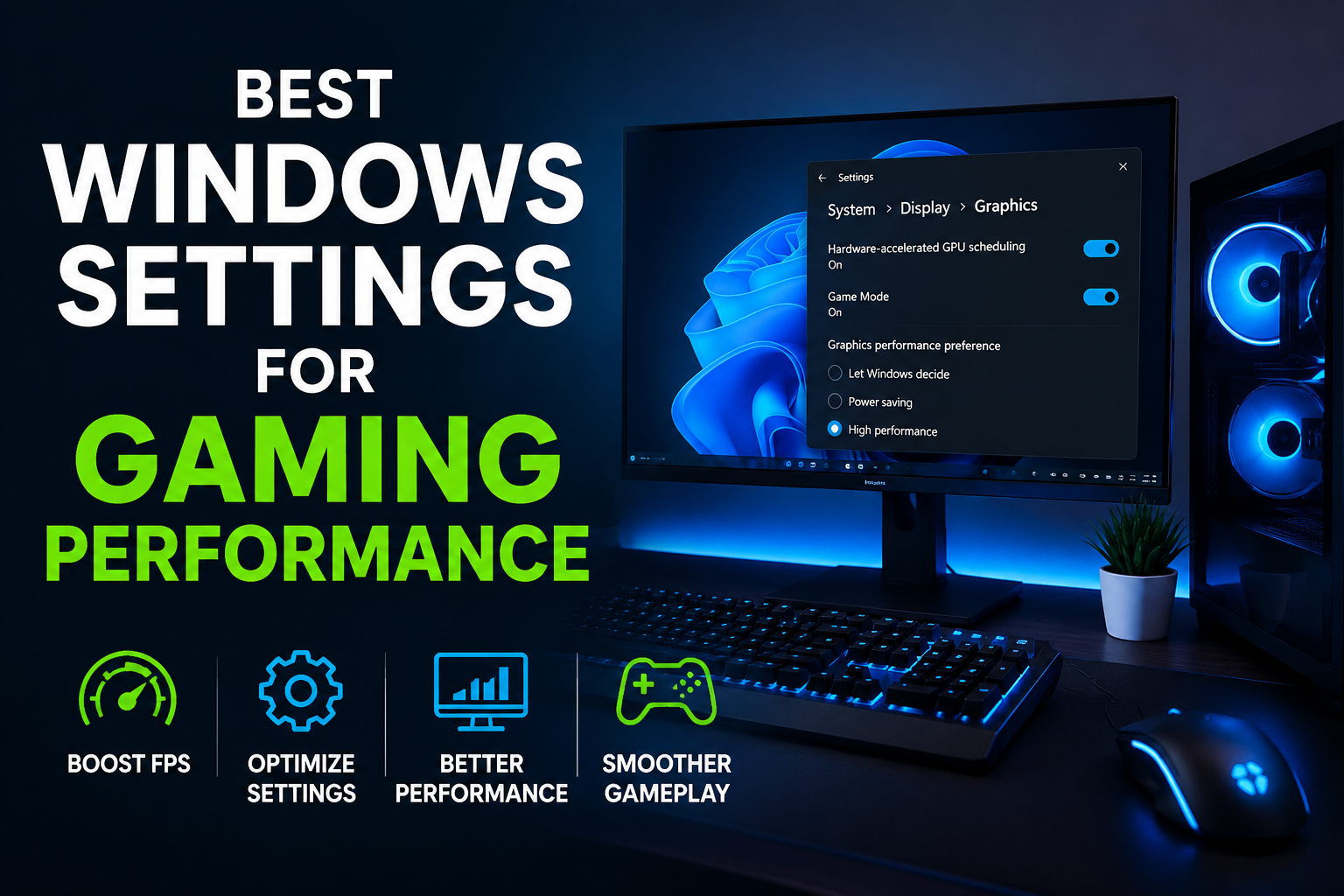
To enable it, I open Windows Settings and go to Gaming. Then I select Game Mode and make sure it is turned on.
Game Mode can help Windows prioritize gaming activity while a game is running. It can also reduce the attention given to certain background activities.
I do not expect a massive FPS increase from Game Mode alone, but I prefer keeping it enabled because it is designed for gaming and does not require additional software.
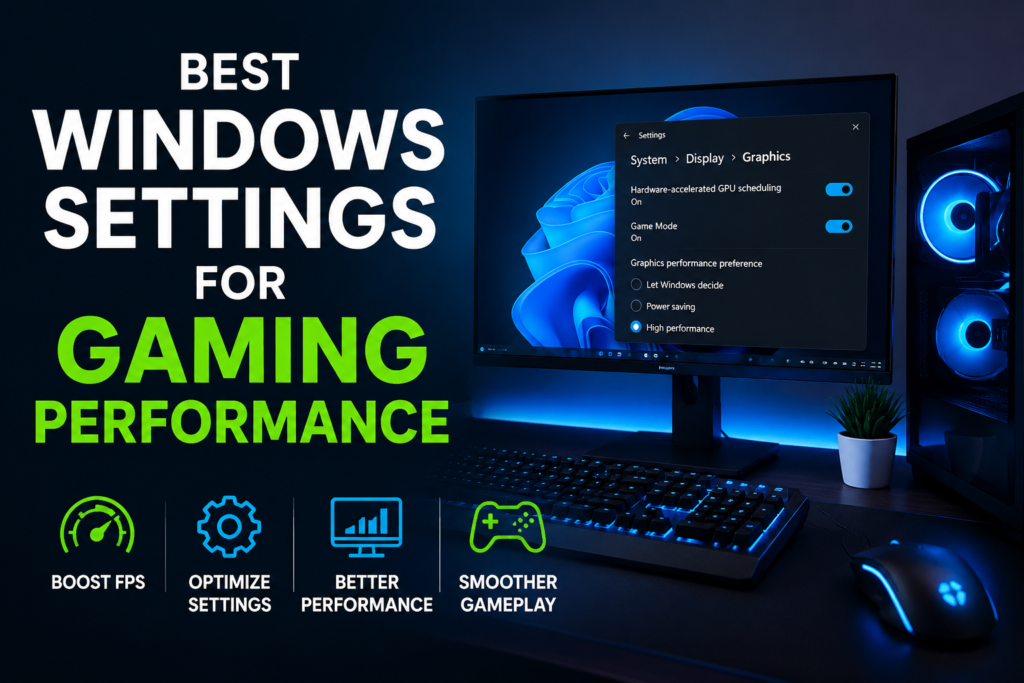
Enable Hardware Accelerated GPU Scheduling
Another setting worth checking is Hardware Accelerated GPU Scheduling. This feature allows the graphics card to handle certain scheduling tasks that would normally be managed more by the CPU.
I usually find this setting under Settings, System, Display, Graphics, and then Default graphics settings. If the option is available on the PC, I enable it and restart Windows.
The actual improvement depends on the graphics card, processor, drivers, and games being played. Some systems may see a small improvement in responsiveness, while others may notice little difference.
Because of this, I recommend testing your games before and after changing the setting instead of assuming it will always improve performance.
Choose High Performance Power Settings
Power settings can also affect gaming performance. Windows may try to balance performance and power consumption, especially on laptops.
When I am gaming while connected to a charger, I prefer using a performance focused power mode.
I go to Settings, System, Power and Battery and look for the power mode option. If the PC offers a higher performance mode, I select it when gaming.
This can help the processor maintain higher performance when the system needs additional power. On a laptop, however, I would not use maximum performance all the time because it can increase power consumption, heat, and fan noise.
For desktop gaming PCs, the difference may be smaller, but using an appropriate performance mode is still worth checking.
Disable Unnecessary Startup Apps
One of the simplest improvements I make on a Windows PC is reducing unnecessary startup applications.
When too many applications automatically start with Windows, they can consume RAM, CPU resources, and storage activity in the background.
I open Task Manager and select the Startup Apps section. From there, I review the applications that launch automatically and disable the ones I do not need.
I do not disable everything. Some applications and services are useful, and I always make sure I understand what an application does before turning it off.
Reducing unnecessary startup programs can make Windows feel faster and can leave more resources available when I start a game.
Reduce Background Applications
Background applications are another area I pay attention to. While gaming, I do not need every application running at the same time.
For example, I may close unnecessary browser windows, file synchronization tools, media applications, and other programs that are not needed during a gaming session.
Browsers can be particularly demanding when many tabs are open. Even if I am not actively using those tabs, they may still consume memory and processor resources.
Before launching a demanding game, I usually close anything I do not need. This is a simple habit, but it can help keep the system focused on the game.
Adjust Windows Visual Effects
Windows includes several visual effects that make the operating system look more attractive. Animations, transparency, shadows, and other effects can use system resources.
On a modern gaming PC, these effects normally have a small impact. However, on an older computer with limited RAM or a weaker processor, reducing them may help make Windows feel more responsive.
To adjust these settings, I search for Performance Options in Windows and open the settings for visual effects.
I prefer using a balanced approach rather than disabling everything. I keep basic visual features enabled while reducing effects that I do not consider important.
Keep Graphics Drivers Updated
Although graphics drivers are not technically a Windows performance setting, I consider them extremely important.
A graphics driver allows Windows and games to communicate properly with the GPU. Updated drivers can include performance improvements, bug fixes, and compatibility updates for newer games.
I usually check the official software provided by my graphics card manufacturer for driver updates.
At the same time, I do not install random driver tools from unknown websites. I prefer using official sources because graphics drivers are an important part of the gaming system.
Set the Game to High Performance Graphics
Windows also allows me to select which GPU should be used by individual applications.
This is particularly useful on laptops that have both integrated and dedicated graphics.
I go to Settings, System, Display, Graphics and add the game if it is not already listed. Then I select the game and choose Options. If the PC has a dedicated GPU, I can select the High Performance option.
This tells Windows that I want the game to use the more powerful graphics processor.
For gaming laptops, this setting can be particularly useful if a game accidentally launches using integrated graphics instead of the dedicated GPU.
Turn Off Unnecessary Notifications
Notifications may not have a huge effect on FPS, but I still prefer reducing interruptions while gaming.
Windows and other applications can display notifications while I am playing. Some notifications can cause distractions, and certain overlays or applications may briefly use system resources.
I use Windows notification settings to control which applications are allowed to send notifications.
For longer gaming sessions, I also like using Focus or similar notification control features so that unnecessary alerts do not interrupt my game.
Check Xbox Game Bar Settings
Xbox Game Bar can be useful for recording gameplay, checking performance information, and communicating with friends. However, if I never use these features, I do not need every related feature running.
I check the Gaming settings in Windows and review Xbox Game Bar options.
I do not recommend blindly disabling gaming features. Instead, I look at which features I actually use.
If I never record gameplay or use Game Bar, reducing unnecessary gaming background features may help keep the system cleaner.
Manage Game Overlays
Overlays from different applications can sometimes affect gaming performance or cause compatibility problems.
For example, communication applications, graphics card software, game launchers, and recording tools may display overlays on top of a game.
I personally keep only the overlays I actually need.
If I experience stuttering, crashes, or unusual FPS drops, one of the first things I test is disabling unnecessary overlays. Sometimes the issue is not the game itself but another application interacting with it.
Keep Windows Updated
I also recommend keeping Windows reasonably up to date.
Windows updates can contain security fixes, hardware compatibility improvements, and bug fixes. Some updates can also improve support for newer technologies.
However, I prefer updating Windows when I have time to restart the PC and test my games afterward.
If a major update has just been installed and I notice unexpected performance problems, I investigate the update and check for driver updates rather than immediately changing many unrelated settings.
Enable Storage Optimization
Storage performance can affect game loading times and overall system responsiveness.
I regularly check Windows storage settings and remove unnecessary temporary files. Windows Storage Sense can help automate some of this cleanup.
I also try to keep enough free space on the drive where Windows and my games are installed.
A nearly full drive can create unnecessary problems, so I prefer maintaining reasonable free space instead of allowing the storage device to become completely full.
Use the Correct Display Refresh Rate
One Windows setting that many gamers overlook is the monitor refresh rate.
If my monitor supports 120Hz, 144Hz, 165Hz, or a higher refresh rate, I make sure Windows is actually configured to use it.
I go to Settings, System, Display, Advanced Display and check the refresh rate.
If Windows is accidentally set to a lower refresh rate, the game may not feel as smooth as expected even when the PC is producing high FPS.
For me, checking the refresh rate is one of the easiest gaming improvements because it does not require installing anything.
Turn Off Unused Recording Features
Recording gameplay can use CPU, GPU, memory, and storage resources. If I am not recording, I prefer not to keep unnecessary recording features active.
Windows and graphics software can provide background recording options. I review these settings and turn off automatic recording features that I do not use.
This can help reduce unnecessary background activity while gaming.
My Final Thoughts
In my experience, improving gaming performance on Windows is not always about buying a faster processor or graphics card. There are many small settings that can be adjusted to make better use of the hardware I already have.
I usually start with Game Mode, power settings, graphics preferences, startup applications, background programs, and GPU drivers. After that, I check my display refresh rate and look for unnecessary overlays or recording features.
I also believe it is important not to change dozens of settings at once. If I change everything together, it becomes difficult to know what actually helped.
Instead, I prefer changing one or two settings, restarting the computer if necessary, and then testing the same game again. This gives me a much better idea of whether the change actually improved performance.
Most importantly, Windows settings cannot overcome serious hardware limitations. If a game requires more graphics power than the PC can provide, settings may only offer a limited improvement. Still, optimizing Windows is a useful first step because it costs nothing and can help a gaming PC perform closer to its real potential.
For me, the best gaming setup is not necessarily the one with every setting turned to maximum performance. It is the setup that feels stable, smooth, and reliable while giving the game as many system resources as reasonably possible.