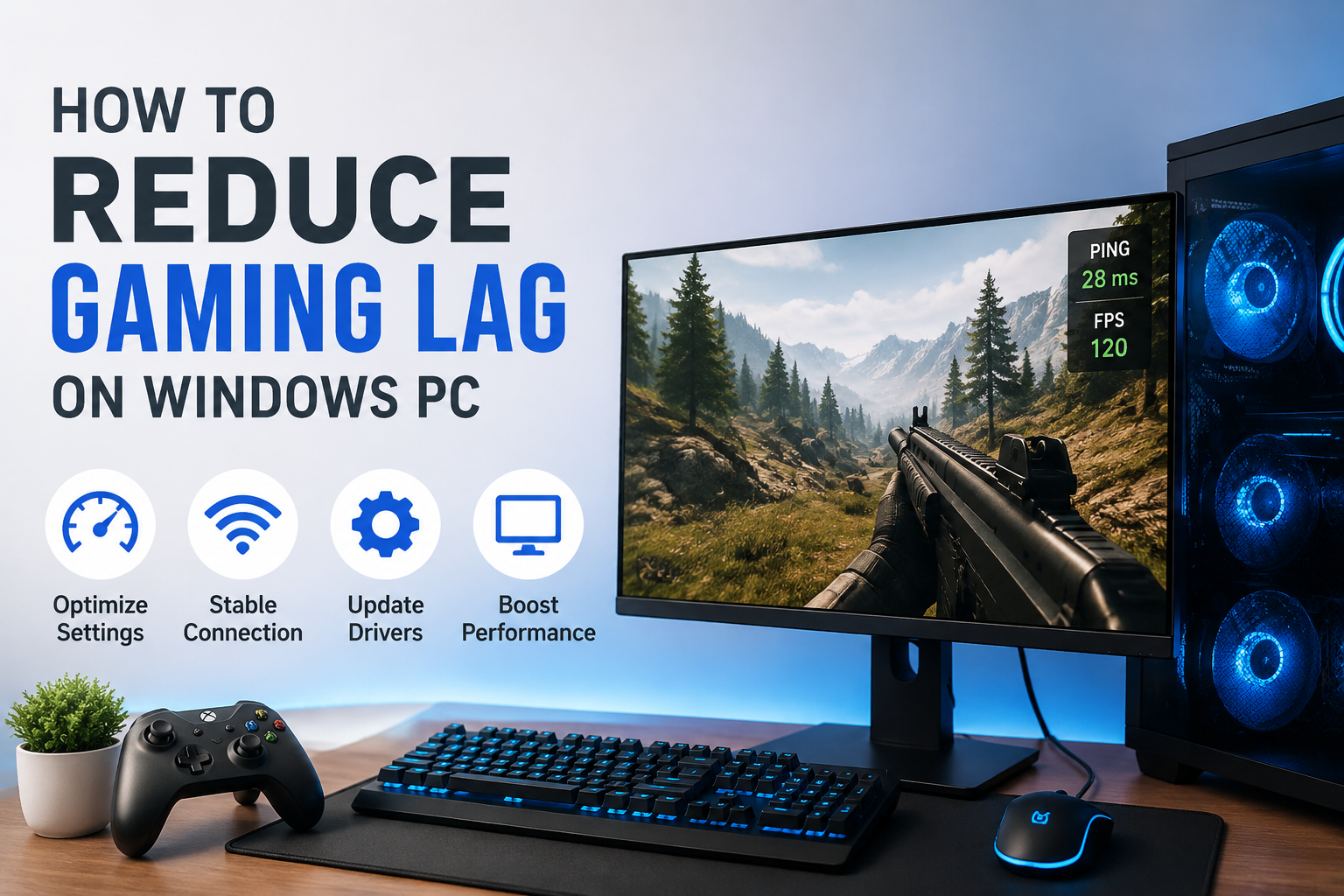
Gaming lag is one of the most frustrating problems I face when playing games on a Windows PC. Everything can look fine one moment, and then suddenly the game starts freezing, responding slowly, or showing delayed movement. In competitive games, even a small amount of lag can make a big difference.
The good thing is that gaming lag is not always caused by an old computer. Sometimes the problem comes from the internet connection, background applications, Windows settings, outdated drivers, overheating, or game settings. I have found that checking these areas one by one can make gaming much smoother.
In this article, I will share the methods I personally recommend for reducing gaming lag on a Windows PC. Most of these solutions are simple and do not require expensive software or hardware.
Understand What Type of Lag You Have
Before changing Windows settings, I first try to understand what kind of lag I am experiencing. Not every gaming problem has the same cause.
If the game suddenly freezes or the frame rate becomes very low, the problem is probably related to PC performance. This can happen because of a weak graphics card, insufficient RAM, high temperatures, or too many programs running in the background.
If the game feels delayed even though the graphics are smooth, the problem may be related to internet latency. This is common in online multiplayer games.
I also pay attention to ping. A high ping means there is a longer delay between my PC and the game server. A stable internet connection with lower ping usually gives a much better online gaming experience.
Close Unnecessary Background Programs
One of the easiest things I do before starting a demanding game is close programs that I do not need.
Windows can have many applications running in the background. Web browsers, cloud storage applications, update services, communication apps, and other programs can use CPU, RAM, disk activity, or internet bandwidth.
I usually open Task Manager by pressing Ctrl, Shift, and Esc. From there, I check which applications are using the most system resources.
If I see a program using a lot of CPU or memory and I do not need it while gaming, I close it. I avoid ending Windows system processes because stopping the wrong process can create other problems.
This simple step can sometimes make a noticeable difference, especially on PCs with limited RAM.
Reduce Unnecessary Startup Applications
Some applications automatically start when Windows boots. I do not always need these applications while gaming, so I prefer to disable unnecessary startup programs.
In Windows, I can open Task Manager and select the Startup Apps section. There I can see which applications launch automatically.
I disable programs that I rarely use and do not need immediately after starting Windows. This can reduce background activity and make the system feel more responsive.
I would not recommend disabling everything blindly. Some applications and services may be important for hardware, security, or other features.
Update Your Graphics Driver
Graphics drivers play an important role in gaming performance. I always try to keep my graphics driver updated, especially when I am experiencing problems with a newer game.
Graphics card manufacturers regularly release driver updates that can improve compatibility, fix bugs, and sometimes improve performance.
If I use a dedicated graphics card, I check the official software provided by the graphics card manufacturer for driver updates. I avoid downloading drivers from random websites because unofficial downloads can be unsafe.
After installing a major driver update, I usually restart the computer before testing my game again.
Lower Graphics Settings
Sometimes the simplest solution is to reduce the graphics settings inside the game.
I do not think every game needs to run at maximum settings. If my PC struggles to maintain a stable frame rate, I prefer smooth gameplay over extremely detailed graphics.
I usually start by lowering settings that have a significant effect on performance. Shadows, reflections, ambient effects, view distance, and certain lighting effects can be demanding.
I also check the resolution. Running a game at a slightly lower resolution can reduce the workload on the graphics card.
My approach is to change one or two settings at a time and then test the game. This helps me understand which settings are actually affecting performance.
Keep Windows Updated
Windows updates can include performance improvements, security fixes, and hardware compatibility updates. For this reason, I do not ignore Windows updates completely.
I open Windows Update from Settings and check whether important updates are available.
However, I also avoid starting a major Windows update immediately before an important gaming session. Updates can sometimes restart the computer or temporarily use system resources.
Keeping Windows reasonably up to date is part of maintaining a healthy gaming PC.
Check Your Internet Connection
For online games, internet performance is extremely important.
I first check whether other devices are using a large amount of bandwidth. Someone watching high resolution video or downloading a large file on the same network can increase network congestion.
If possible, I prefer using an Ethernet connection instead of WiFi for competitive gaming. A wired connection can provide a more stable connection and reduce interference.
If I have to use WiFi, I try to play closer to the router and make sure the connection is stable.
I also restart my router occasionally if I notice unusual connection problems. If high ping continues across different games, the problem may be related to the internet service rather than my PC.
Choose the Correct Game Server
Many online games allow players to select a server or region. I always choose the server that is geographically closest to me when possible.
Choosing a distant server can result in higher ping and noticeable input delay.
For example, if the game automatically connects me to a server in another region, I check whether the game provides a region selection option. Selecting a nearby server can sometimes improve the experience without changing anything on the PC itself.
Stop Large Downloads While Gaming
I avoid downloading large files while playing online games.
Windows updates, game launchers, cloud synchronization, and other applications can use internet bandwidth in the background. This can increase latency and make an online game feel unstable.
Before starting a multiplayer game, I check whether Steam, other game launchers, or cloud services are downloading something.
If I am downloading a large game, I usually let the download finish before starting a competitive match.
Check Your PC Temperature
Overheating can also cause gaming performance problems.
When a CPU or GPU becomes too hot, the system may reduce its speed to protect the hardware. This can result in lower frame rates and sudden performance drops.
I keep the PC case clean and make sure the air vents are not blocked. For laptops, I avoid placing the computer on soft surfaces such as beds because they can block ventilation.
If the computer becomes extremely hot during gaming, I check the cooling system and consider cleaning dust from the fans.
Enable Windows Game Mode
Windows includes a Game Mode feature designed to help prioritize gaming activity.
I usually keep Game Mode enabled when playing games. I can find it by opening Windows Settings and searching for Game Mode.
It is not a magic solution that will transform an old PC into a powerful gaming machine, but it can help Windows focus more on the gaming experience.
I also check other Windows gaming settings if I am troubleshooting performance issues.
Use an SSD If Possible
Storage speed can also affect the overall gaming experience.
If a game is installed on an old mechanical hard drive, loading times can be much longer. Some modern games also perform better when installed on an SSD.
I noticed that moving games from a traditional hard drive to an SSD can make loading screens much faster. It may not directly solve high internet ping, but it can improve general game responsiveness and loading performance.
If the PC supports an SSD upgrade, I consider it one of the more useful hardware improvements.
Keep Enough Free Storage Space
I also avoid filling my main Windows drive completely.
When a storage drive becomes extremely full, Windows and applications may have less room for temporary files and other operations.
I regularly remove files I no longer need and uninstall games or applications that I have stopped using.
Windows also includes storage management tools that can help identify large or unnecessary files.
Avoid Random Gaming Optimizer Software
I have tried different optimization tools over time, but I do not believe every gaming booster is useful.
Some programs promise dramatic performance improvements with one click, but many simply change settings that I could adjust myself.
Some may also run additional background services, which defeats the purpose of reducing system load.
For most users, I recommend starting with Windows settings, game settings, drivers, cooling, and network troubleshooting before installing third party optimization software.
Upgrade Hardware When Necessary
Sometimes software adjustments can only go so far.
If a PC has very old hardware, modern games may simply be too demanding. In that situation, upgrading the hardware can provide a much bigger improvement.
Adding more RAM can help if the computer frequently runs out of memory. An SSD can improve loading times, while a better graphics card can significantly improve frame rates.
Before buying anything, I check the game’s recommended system requirements and compare them with my PC specifications.
Final Thoughts
Reducing gaming lag on a Windows PC does not always require expensive upgrades. In my experience, small improvements can add up and create a much smoother gaming experience.
I start by identifying whether the problem is low frame rate, high ping, overheating, or something else. Then I close unnecessary background applications, update graphics drivers, reduce demanding game settings, check my internet connection, and make sure the PC has enough cooling and storage space.
For online gaming, I pay special attention to ping, server location, WiFi stability, and background downloads. For performance problems, I focus more on graphics settings, drivers, temperatures, RAM, storage, and hardware limitations.
The most important thing is to make changes one at a time and test the game after each change. This makes it much easier to discover what is actually causing the problem.
A well maintained Windows PC does not need to be the most expensive computer to provide a good gaming experience. With the right settings and a little troubleshooting, I can often get smoother gameplay from the hardware I already have.