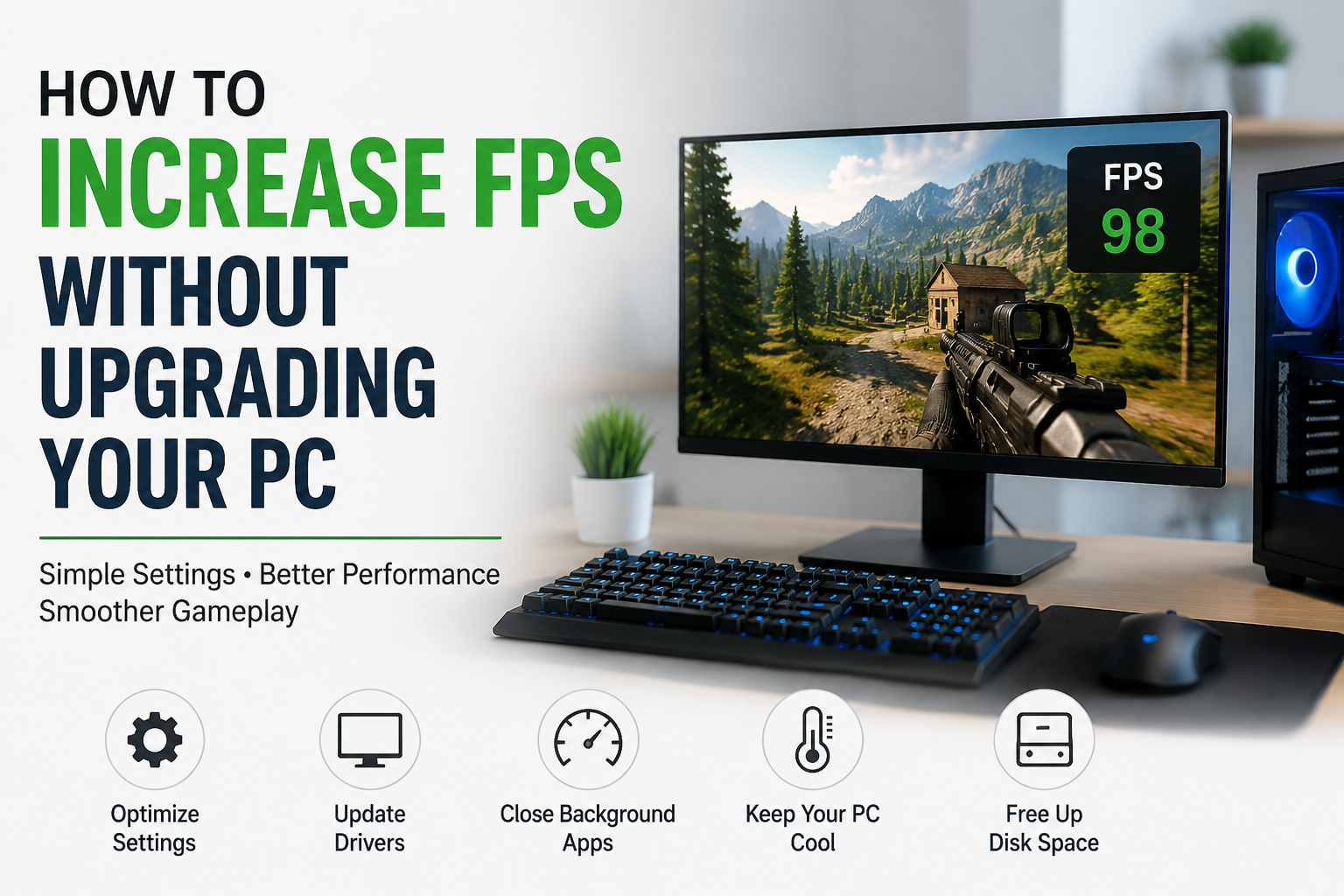
When I play games on a PC, one of the first things I notice is the FPS. A game can have beautiful graphics and great gameplay, but if the FPS keeps dropping, the whole experience can become frustrating. The good thing is that I do not always need to buy a new graphics card, processor, or other expensive hardware to get better performance.
Over time, I have found that there are several simple things I can do to increase FPS without upgrading my PC. Some changes are related to Windows settings, while others involve game settings, background applications, drivers, and power management. These changes may not turn an old PC into a high end gaming machine, but they can make a noticeable difference.
In this article, I will share the methods I personally consider useful when trying to get better FPS from an existing Windows PC.
Check Your Current FPS First
Before changing anything, I recommend checking your current FPS. This gives me a starting point and helps me understand whether a change actually improves performance.
Many modern games have a built in FPS counter. Some gaming platforms and graphics software also provide FPS monitoring options. I usually check FPS while playing the same part of a game because performance can change depending on what is happening on the screen.
For example, if I normally get around 45 FPS and some changes increase that number to 55 or 60 FPS, I know the changes are helping.
Close Unnecessary Background Programs
One of the easiest things I can do is close programs that I am not using. When I play a demanding game, I do not want unnecessary applications using my processor, memory, or disk resources in the background.
I usually check the Windows Task Manager before starting a game. I can press Ctrl, Shift, and Esc together to open it. From there, I can see which applications are using the most system resources.
If I have a browser with many tabs open, a video editing program running, or other applications that I do not need while gaming, I close them.
This is especially useful on PCs with limited RAM. When memory is already under heavy pressure, closing unnecessary programs can help the game run more smoothly.
Disable Unnecessary Startup Programs
Some applications automatically start whenever Windows boots. Even though I may not notice them, these programs can continue running in the background.
I can open Task Manager and select the Startup apps section to see which programs launch with Windows. If there are applications I rarely use, I can disable their automatic startup.
This does not directly give me a huge FPS increase in every game, but it can reduce background activity and help Windows feel more responsive.
I prefer to disable only programs that I recognize. I avoid changing anything related to important Windows services or drivers without knowing what it does.
Update Your Graphics Driver
Graphics drivers can have a significant effect on gaming performance. I always make sure my graphics driver is reasonably up to date, especially when I am experiencing problems with a particular game.
Graphics companies regularly release driver updates that can improve compatibility and performance. Sometimes a new game performs better after installing the correct driver.
I also recommend downloading drivers from the official website or through the official software provided by the graphics manufacturer.
If a game suddenly starts performing badly after a driver update, I would also consider checking whether the problem is related to that particular driver version.
Lower Graphics Settings
This is probably the most effective method when I want more FPS without spending money.
Modern games include many graphics settings that can dramatically affect performance. I usually start with settings such as shadows, reflections, lighting, effects, and view distance.
I do not necessarily reduce everything to the lowest possible setting. Instead, I experiment with individual settings and find a balance between image quality and performance.
For example, lowering shadow quality can sometimes provide a noticeable performance improvement while the game still looks good. I may also reduce reflection quality or certain visual effects if they are using too many resources.
My goal is not always the highest possible FPS. I prefer a stable FPS that makes the game feel smooth.
Reduce Resolution When Necessary
Resolution has a major impact on graphics performance. If my PC struggles to maintain a reasonable FPS, reducing the game resolution can help.
For example, moving from a higher resolution to a lower one means the graphics card has fewer pixels to render.
I usually try this after adjusting individual graphics settings. If the FPS is still too low, reducing resolution can provide another performance boost.
Of course, the image may look less sharp at a lower resolution. That is why I recommend testing different options and finding the lowest resolution that still looks comfortable to me.
Use Performance Focused Game Settings
Some games provide presets such as Low, Medium, High, and Ultra. If I am struggling with FPS, I normally start with the Medium preset and then adjust individual settings.
I have found that simply switching from Ultra to High can sometimes improve FPS significantly without making the game look dramatically different.
There are also advanced options in many games that are designed specifically for performance. Features related to shadows, ambient lighting, particle effects, and post processing can consume a lot of graphics power.
I usually change one setting at a time so I can see exactly what difference it makes.
Turn Off Unnecessary Visual Effects
Windows itself also includes visual effects that are not essential for gaming. On a lower performance PC, I prefer to reduce unnecessary animations and visual effects.
I can search Windows for performance settings and adjust the visual effects options. Choosing settings that prioritize performance can reduce some of the graphical work Windows performs.
The improvement may be small on a powerful PC, but on an older machine every little bit can help.
Use Windows Game Mode
Windows includes a feature called Game Mode that is designed to help Windows prioritize gaming activity.
I usually keep Game Mode enabled when gaming. It can help Windows manage system resources while I am playing a game.
To find it, I can open Windows Settings and search for Game Mode. From there, I can check whether it is enabled.
It is not a magic setting that doubles FPS, but it is worth keeping enabled when trying to optimize a gaming PC.
Choose the Right Power Mode
Windows power settings can also influence performance. If my PC is using a power saving mode, the processor may not operate at its full performance potential when I am gaming.
I usually check the Power settings in Windows and choose a performance focused option when available.
On a laptop, this can be especially important because some systems automatically reduce performance when running on battery power.
For demanding games, I prefer to play while connected to the charger if I am using a laptop. This can help the system maintain better performance.
Keep Your PC Cool
Heat can seriously affect gaming performance. When a processor or graphics card becomes too hot, the system may reduce its speed to protect the hardware.
I regularly check that my PC has good airflow. I make sure the vents are not blocked and that dust does not build up inside the system.
If I am using a desktop PC, keeping the case clean can help airflow. For a laptop, I avoid placing it on soft surfaces such as beds or thick blankets because they can block ventilation.
Good cooling does not upgrade my hardware, but it helps the hardware I already have perform properly.
Free Up Storage Space
A nearly full storage drive can make Windows less comfortable to use. I try to keep enough free space on my main drive.
I remove temporary files, uninstall games or programs I no longer use, and clean up unnecessary files.
This is not guaranteed to produce a huge FPS improvement, but maintaining enough free storage can contribute to better overall system performance.
Disable Overlays You Do Not Need
Gaming overlays can be useful, but I do not always need every overlay running while playing.
Applications that provide chat, recording, statistics, or other features can sometimes consume additional resources.
If I am trying to troubleshoot low FPS, I temporarily disable unnecessary overlays and compare the performance.
This helps me determine whether a background feature is contributing to the problem.
Avoid Running Too Many Recording Features
Recording gameplay can use a noticeable amount of system resources. If my FPS is already low, I avoid unnecessary recording or streaming features.
If I need to record gameplay, I use settings that match the performance of my PC rather than choosing the highest recording quality.
This is particularly important on older systems because recording and gaming at the same time can put additional pressure on the processor and graphics card.
Keep Windows Updated
I also keep Windows reasonably updated. Updates can include performance improvements, security fixes, driver changes, and compatibility improvements.
However, if a performance problem starts immediately after a major update, I check whether other users are reporting similar issues. Sometimes the problem is caused by a temporary software conflict.
In general, keeping Windows maintained is part of keeping my gaming PC healthy.
Remove Programs You Never Use
Over time, I often install programs that I eventually stop using. These applications may take up storage space and some may continue running background processes.
I occasionally review my installed applications and remove programs I no longer need.
I do not recommend using random system cleaning programs that promise huge FPS increases. Many of these tools provide little real benefit, and some can create additional problems.
I prefer simple changes that I can understand and reverse if necessary.
Restart Your PC Before Gaming
This sounds very simple, but restarting Windows can sometimes solve temporary performance problems.
If my PC has been running for a long time and I notice unusual slowdowns, I restart it before starting a demanding game.
A fresh restart closes unnecessary background processes and gives Windows a clean starting point.
It is not something that I rely on for permanent FPS improvement, but it is a quick troubleshooting step that costs nothing.
My Approach to Increasing FPS
When I want to increase FPS without upgrading my PC, I do not change everything at once. I start by checking my current performance.
Then I close unnecessary programs, check my graphics driver, adjust game settings, enable Game Mode, select an appropriate power mode, and make sure the PC is not overheating.
After every major change, I test the same game again.
This approach helps me understand which changes actually work for my particular PC. Every computer is different, so a setting that improves performance on one system may have little effect on another.
Final Thoughts
Increasing FPS without upgrading a PC is completely possible in many situations. I have found that small improvements can add up when I combine sensible Windows settings, better game configuration, proper cooling, updated drivers, and fewer background applications.
The most important thing is to avoid expecting one magical setting to solve everything. Instead, I look at the entire system and remove anything that is unnecessarily using resources.
I also focus on stable performance rather than simply chasing the biggest FPS number. A game that consistently runs at a stable 60 FPS can feel much better than one that jumps between 40 and 90 FPS.
Before spending money on new hardware, I recommend trying these free optimization methods. They may be enough to make your existing PC feel faster and give you a smoother gaming experience without upgrading anything.