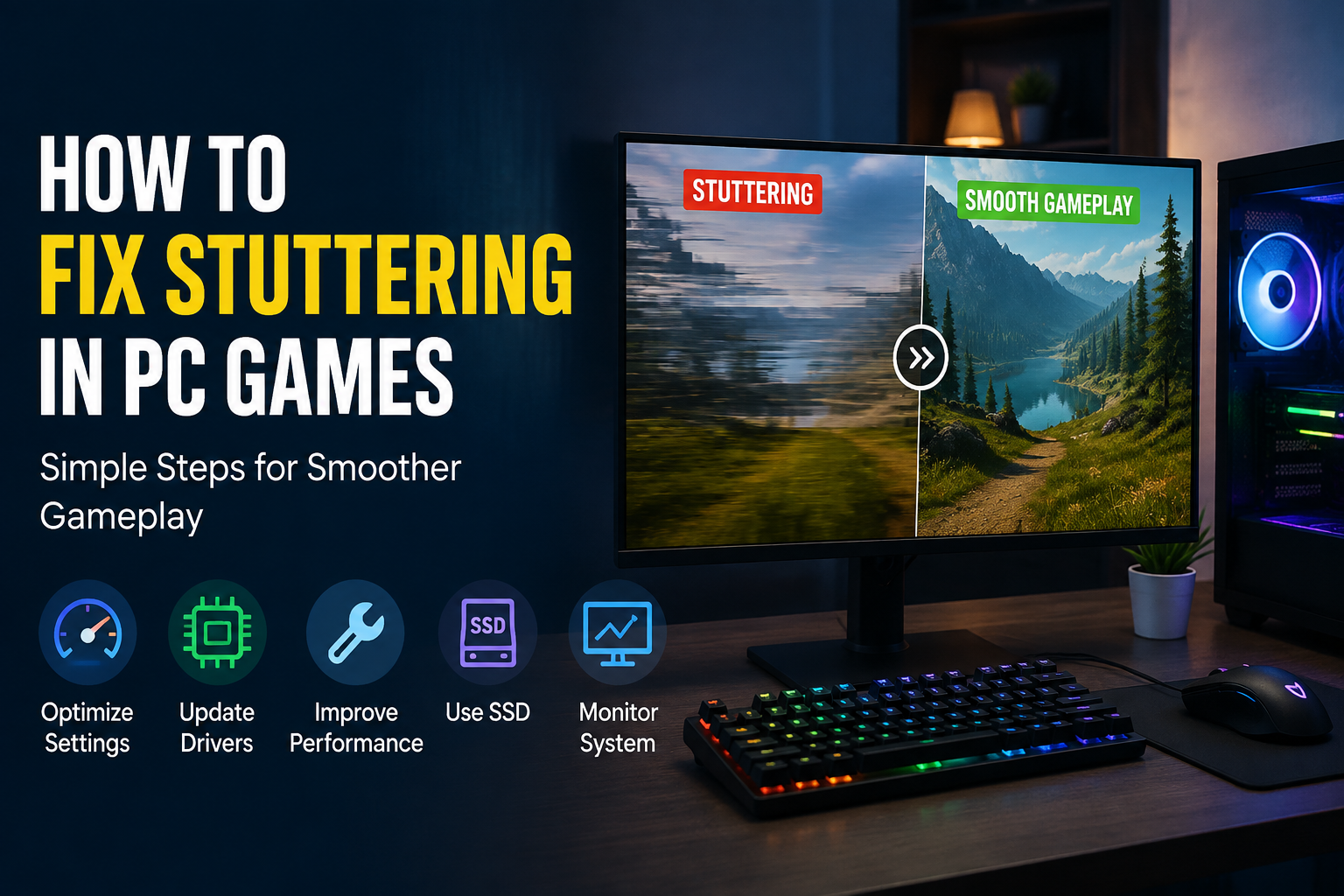
PC gaming can be a great experience when everything runs smoothly, but game stuttering can quickly ruin that experience. I have faced this problem myself, especially when a game looks like it is running at a high FPS but suddenly freezes for a fraction of a second. These small interruptions can make movement feel rough and can be especially annoying in fast games.
The good thing is that stuttering does not always mean that the PC is too weak. In many cases, the problem comes from background applications, graphics settings, outdated drivers, overheating, storage issues, or poor game optimization. In this guide, I will explain the methods I use to reduce or fix stuttering in PC games.
What Causes Game Stuttering?
Before trying different solutions, I think it is useful to understand why stuttering happens. Stuttering usually occurs when the computer cannot deliver frames consistently. You might see an average of 80 FPS, but if some frames take much longer to appear, the game can still feel uncomfortable.
There are several possible reasons behind this problem. Your graphics card might be running out of video memory, your processor might be overloaded, or Windows might have too many programs working in the background. Some games also compile shaders while you are playing, which can temporarily cause noticeable stutters.
Storage speed can also matter. Modern games constantly load textures, maps, sounds, and other files. If the game is installed on a slow or nearly full drive, loading these assets can sometimes create interruptions.
Check Your PC Temperatures
One of the first things I recommend checking is temperature. When a CPU or GPU becomes too hot, it can reduce its performance to protect itself. This process is commonly called thermal throttling.
You can use a reliable hardware monitoring program to check CPU and GPU temperatures while playing. Do not only check temperatures when the PC is sitting idle. Start the game and monitor the system while the stuttering is happening.
If temperatures are unusually high, clean dust from the PC case and make sure the fans are working properly. Also check whether the airflow inside the case is reasonable. A hot room combined with poor airflow can make the situation worse.
For laptops, keeping the vents clear is particularly important. I also recommend avoiding gaming on a soft surface such as a bed because it can block airflow.
Update Your Graphics Driver
Graphics drivers have a major effect on gaming performance. Both NVIDIA and AMD regularly release driver updates that can improve compatibility and fix problems with specific games.
I normally recommend downloading graphics drivers directly from the official website or through the manufacturer’s official software. Avoid random driver websites because there is little reason to take that risk.
After updating the driver, restart the PC and test the game again. If the stuttering started immediately after a driver update, however, the new driver could potentially be responsible. In that situation, checking whether another stable driver version works better can be useful.
Lower Graphics Settings
Another simple solution is to reduce demanding graphics settings. I would not immediately set everything to the lowest possible quality. Instead, I prefer changing the settings that have the biggest effect on performance.
Settings such as shadows, reflections, volumetric effects, ambient occlusion, and view distance can have a significant impact on performance. Texture quality mainly depends on available video memory, so lowering textures can help if your GPU is running out of VRAM.
I usually change one or two settings at a time and then test the game. This makes it easier to understand which setting is causing the problem.
Check Your RAM Usage
Limited RAM can also cause game stuttering. Modern games can use a considerable amount of memory, especially when you have a browser, voice chat application, recording software, and other programs running at the same time.
Open Windows Task Manager and look at memory usage while the game is running. If your RAM usage is consistently very high, close applications that you do not need.
If your PC has a small amount of RAM and frequently reaches its limit during gaming, upgrading the memory may provide a noticeable improvement. However, I would first confirm that RAM is actually the problem before spending money.
Close Unnecessary Background Programs
Background applications are another thing I always check when troubleshooting game performance. Some programs constantly use CPU, RAM, disk activity, or network resources.
Cloud synchronization tools, browsers with many tabs, software updaters, launchers, and recording applications can all consume resources.
You can use Task Manager to see what is using your system resources. Be careful not to randomly end Windows processes because some are required for the operating system to work correctly.
I prefer closing only programs that I recognize and do not need while gaming.
Enable Game Mode in Windows
Windows includes Game Mode, which is designed to prioritize gaming activity and reduce unnecessary interruptions.
You can find it by opening Windows Settings and searching for Game Mode. Make sure it is enabled and then restart your game.
I do not consider Game Mode a magic solution, but it is an easy setting to test. If your PC is already well optimized, you may not notice a huge difference. On some systems, however, reducing unnecessary background activity can make gameplay more consistent.
Manage Windows Startup Applications
Programs that automatically start with Windows can remain active in the background even when you are not using them.
Open Task Manager and go to the Startup Apps section. Review the programs listed there and disable applications that you do not need to launch automatically.
I recommend being conservative here. Do not disable important security software or Windows components simply because their names look unfamiliar.
Reducing unnecessary startup programs can make Windows feel lighter and can also free resources that may otherwise be used during gaming.
Install Games on an SSD
Storage can have a surprisingly large effect on modern games. If a demanding game is installed on an old mechanical hard drive, you may experience longer loading times and occasional interruptions when the game needs to load new data.
An SSD generally provides much faster data access. If you have both an HDD and SSD, I would normally install frequently played modern games on the SSD.
Make sure the SSD also has enough free space. A drive that is almost completely full may not perform as well as a drive with reasonable free space available.
Verify Game Files
Sometimes stuttering comes from damaged or missing game files. Most major PC game platforms provide an option to verify or repair installed files.
If a particular game suddenly starts behaving badly after an update, verifying the files is worth trying. The launcher will compare your installed files with the expected files and replace damaged or missing ones when necessary.
This process can take some time, but it is one of the safer troubleshooting methods because you are not changing complicated Windows settings.
Try Limiting FPS
A very high and unstable frame rate is not always better than a slightly lower but consistent frame rate.
For example, if a game jumps between 120 FPS and 70 FPS, the experience may feel less smooth than a stable 75 or 90 FPS depending on your hardware and display.
I sometimes use an in game frame limiter to find a frame rate that my PC can maintain consistently. The ideal limit depends on your hardware and monitor.
If your monitor supports a variable refresh technology such as FreeSync or G Sync, using it correctly can also improve perceived smoothness.
Check Shader Compilation
Shader compilation is a common reason for stuttering in some modern games. Shaders are programs used by the graphics system to create visual effects, and some games need to prepare them before or during gameplay.
If stuttering happens mostly when entering a new area, seeing a particular effect, or performing an action for the first time, shader compilation could be involved.
Some games provide a shader pre compilation option. If that option exists, I recommend allowing the game to complete it before playing.
Unfortunately, shader related stuttering is sometimes an optimization issue that players cannot completely fix themselves.
Disable Unnecessary Overlays
Gaming overlays can sometimes interfere with performance. Examples include chat overlays, game launcher overlays, recording features, and graphics software overlays.
If you are experiencing unexplained stuttering, temporarily disable overlays and test the game again.
I would not disable everything permanently. Instead, I use this as a troubleshooting step to identify whether an overlay is contributing to the problem.
Keep Windows Updated
Windows updates can include performance improvements, compatibility fixes, and driver related changes. I recommend keeping Windows reasonably up to date instead of ignoring updates for long periods.
At the same time, if your game worked perfectly before a major Windows update and started stuttering afterward, it is worth checking recent reports to see whether other players are experiencing the same issue.
Sometimes the problem is not your hardware at all. A game update, Windows update, or graphics driver can introduce a temporary performance problem.
Do Not Use Random Optimization Programs
When searching for gaming fixes online, you will find many programs claiming to boost FPS dramatically. I personally recommend being careful with these tools.
Some optimization applications make changes that provide little benefit while creating new problems. Others may simply consume additional resources.
I prefer using Windows settings, official driver tools, game settings, and hardware monitoring software before installing third party optimization programs.
Check for Malware
Malware can use your CPU, GPU, RAM, disk, or network connection in the background. If your computer suddenly becomes slow across multiple applications, running a security scan is a sensible step.
Use reputable security software and keep it updated. Avoid downloading suspicious game cracks, cheats, or unknown optimization tools because these can introduce unwanted software.
Test the Game After Every Change
One mistake I often see is changing ten settings at once and then assuming the problem is fixed. I think it is much better to make one change at a time.
Start the game, play the same area, and observe whether the stuttering improves. If it does, remember what you changed. If it does not, move to the next possible solution.
This approach takes a little more time, but it helps you identify the actual cause instead of randomly changing your PC configuration.
Final Thoughts
Game stuttering can be frustrating, but I would not immediately assume that you need a new graphics card or a completely new PC. In many cases, the problem can be reduced by cleaning up background applications, updating drivers, checking temperatures, adjusting graphics settings, improving storage, and making sure Windows is properly configured.
My preferred approach is to troubleshoot the problem step by step. I first check temperatures and resource usage, then drivers, background programs, graphics settings, storage, and game files. If the problem still exists, I look at more specific issues such as shader compilation or game optimization.
The most important thing is to focus on consistent performance rather than chasing the highest possible FPS number. A stable frame rate usually feels much better than a high frame rate that constantly jumps around.
With a little patience, you can often make PC games feel considerably smoother without spending money on new hardware.